# Install an app listing
> **Note:**
> For more information on how to configure your app listing for install, please see our [Installation (OAuth)](https://developer.rippling.com/documentation/developer-portal/v2-guides/installation) guide.
After deploying your sandbox app listing, you can install it in your test company. We suggest using Postman to navigate through the app installation process. This will help you become familiar with the complete workflow and grant you quick access to Rippling APIs.
> **Note:**
> If you are **not** using Postman for installation testing, please see our [Install without Postman](https://developer.rippling.com/documentation/developer-portal/creating-publishing/install#install-without-postman) section.
## Requirements
You must have completed the following to begin installing your sandbox app in your test company:
- Created your app listing.
- Configured your app listing:
- Added scopes
- Added a default redirect URL
- Added a main category
- Added a logo icon
- Deployed your app sandbox listing.
- Retrieved your **sandbox app** client ID and client secret.
- Confirmed your sandbox app has finished deploying.
- Switched to the test company.
## Install with Postman
**Configure Postman**
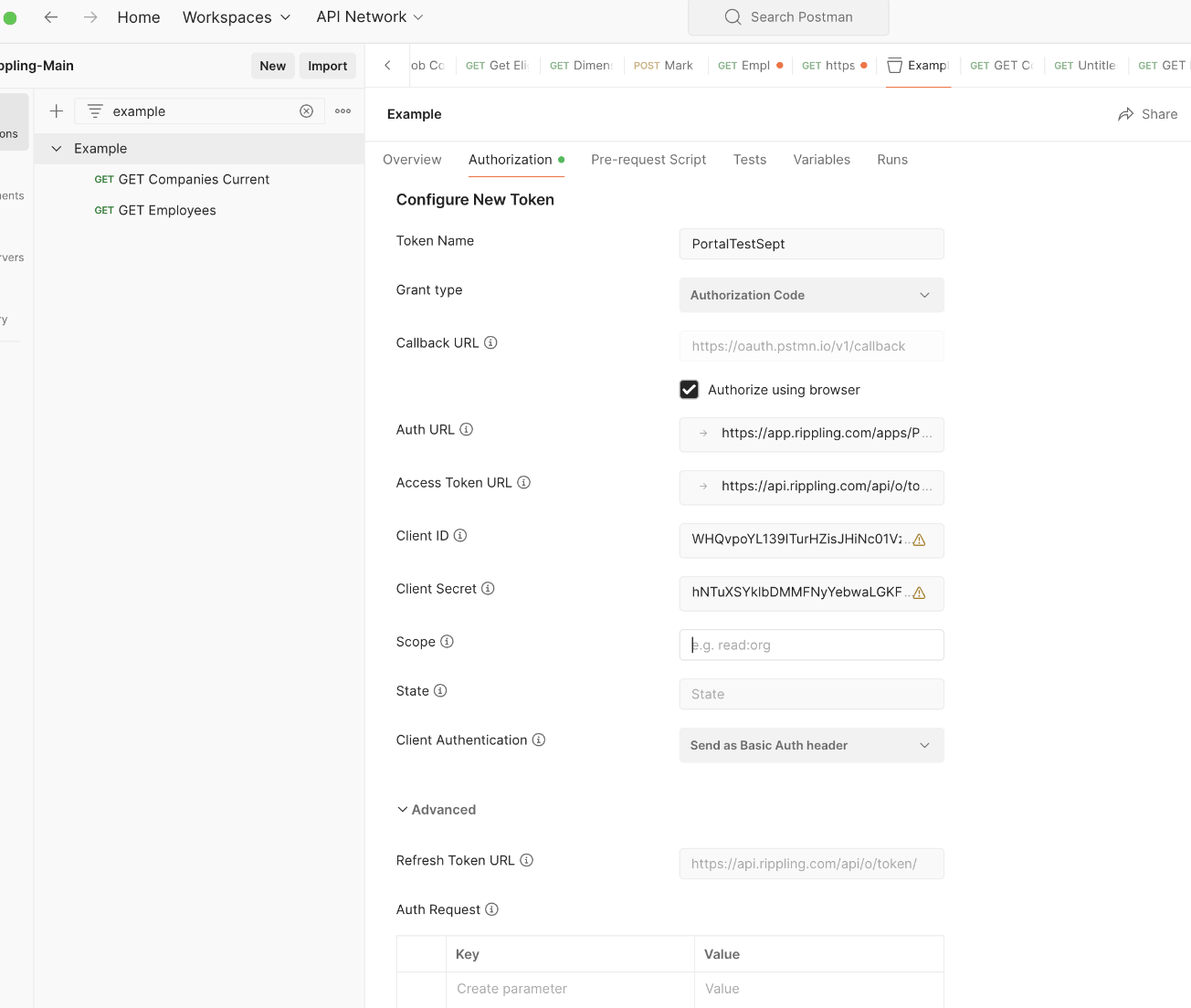
Configure a new collection in Postman with the following variables:
| Field | Description |
| --- | --- |
| **Type** | OAuth 2.0 (this will expect form-encoded query parameters) |
| **Auto-refresh Token** | Toggle On |
| **Grant Type** | Authorization Code |
| **Callback URL** | [https://oauth.pstmn.io/v1/callback](https://oauth.pstmn.io/v1/callback)
⚡ This will also need to be configured as your default redirect URL in your app listing. |
| **Authorize using browser** | Enabled |
| **Auth URL** | [https://app.rippling.com/apps/PLATFORM/INSERTSANDBOXAPPNAME/authorize](https://app.rippling.com/apps/PLATFORM/INSERTSANDBOXAPPNAME/authorize)
🛑 In the Auth URL setting, you'll replace INSERTSANDBOXAPPNAME with the name of your sandbox app listing. Navigate to the _Testing > Sandbox testing_ tab of your app listing and click on **Sandbox app status**. You will find the app name in the Sandbox app link section.
**Example:** [https://app.rippling.com/apps/PLATFORM/alphalisting80a33/authorize](https://app.rippling.com/apps/PLATFORM/alphalisting80a33/authorize) |
| **Access Token URL** | [https://api.rippling.com/api/o/token/](https://api.rippling.com/api/o/token/) |
| **Client ID** | Go to your app listing and navigate to _Listing summary > Integration > Credentials_. Find your Sandbox app credentials and copy the **Client ID**. |
| **Client Secret** | Go to your app listing and navigate to _Listing summary > Integration > Credentials_. Find your Sandbox app credentials and copy the **Client Secret**. |
| **Client Authentication** | Send as basic auth header. |
#### Postman Example
> **Note:**
> Make sure to click the **Save** button after completing your Postman configurations!
**Create requests**
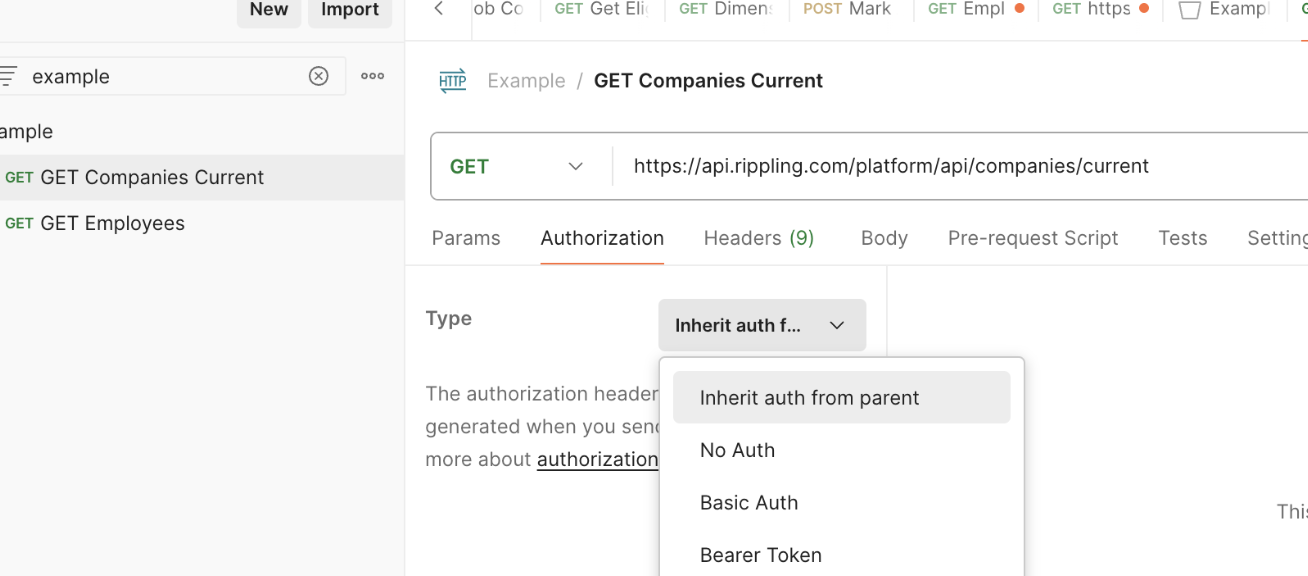
Add two new HTTP requests for **GET List Companies** and **GET Workers**:
Make sure that you set the **Authorization Type** as **Inherit auth from parent.**:
> **Note:**
> When you are ready to start the installation flow, make sure that the most recent browser tab you visited (clicked on) is the browser where you logged in as the **Admin** to your **test company**!
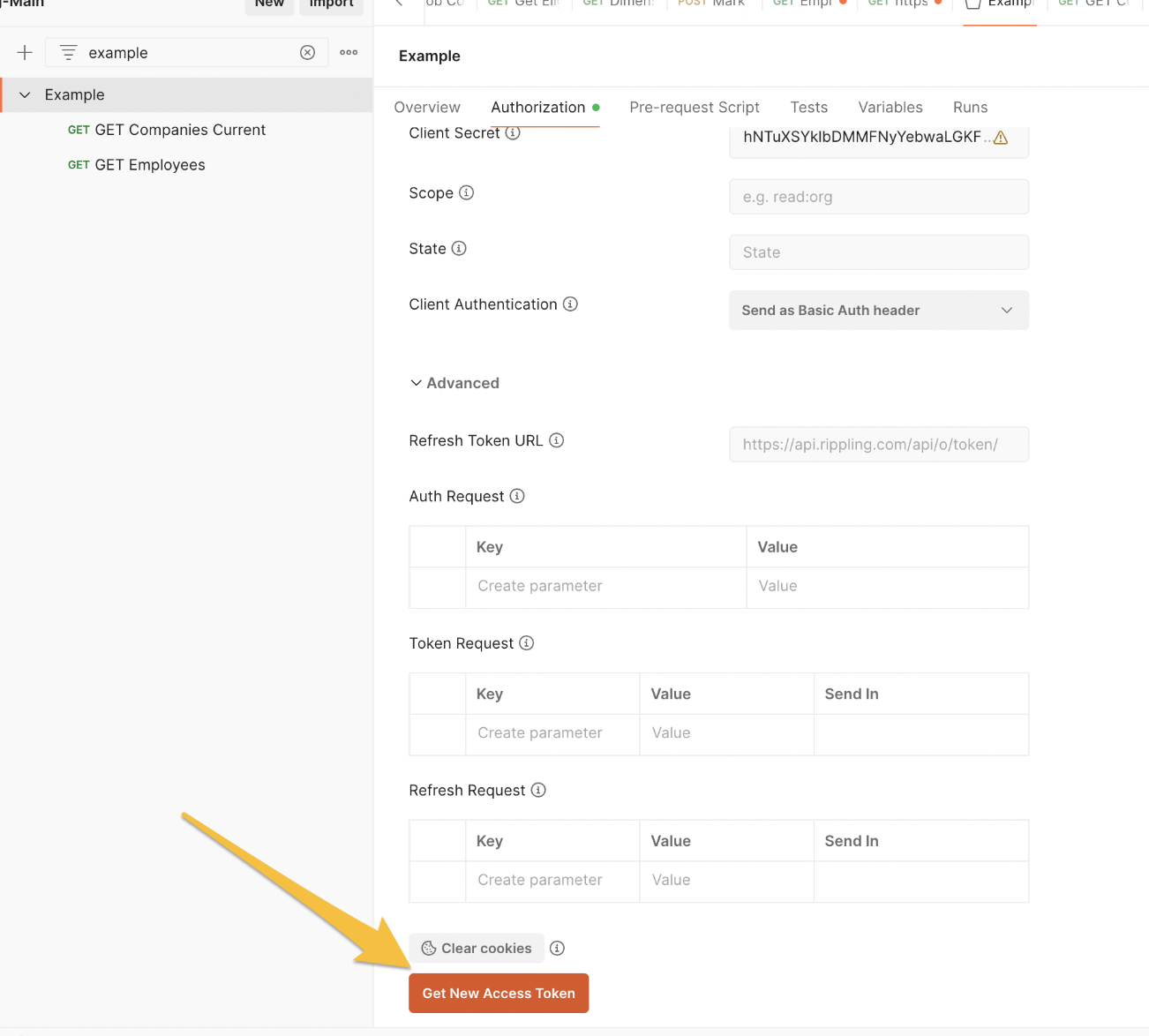
**Start the installation**
Click the **Get new access token** button.
When you go to **Redirect** you might have to configure your browser settings to allow pop-ups. If you do, simply click the back button in your browser and click the redirect button in Rippling again.
You can now collect and store the access token in Postman and make your first successful call to Rippling APIs using GET Employees and GET Companies Current by navigating to the HTTP requests and selecting **Send**.
After you've verified that the API calls are successfully fetching information in Postman, you can navigate to your test company's Admin account to see your newly-installed app.
> **Note:**
> This same process can also be followed if you wish to install your **production app listing** in your **test company**.
## Install without Postman
**1\. Initiate the OAuth flow:**
- Direct to the URL [https://app.rippling.com/app-shop/app/{APPNAME}](https://app.rippling.com/app-shop/app/%7BAPPNAME%7D). Insert the app name found on the _Testing > Sandbox testing > Sandbox app status_ tab.
- During the install flow, Rippling will redirect users to your **default redirect URL** after the “Connect your \_\_\_ account to Rippling” page with an **authorization code**.
**2\. Handle the redirect:**
- Set up a server endpoint in your system (e.g., /oauth/callback) to handle the redirect from Rippling.
- Extract the **authorization code** and **redirect\_uri** from the query parameters of the HTTP request.
**3\. Exchange code for access token:**
- Use server-side code to send a **POST request** to Rippling's token endpoint: [https://api.rippling.com/api/o/token/](https://api.rippling.com/api/o/token/).
- Include these parameters in your request:
- grant\_type=authorization\_code
- code=``
- redirect\_uri=``
- Use Basic Authentication (Base64) with your `client_id` and `client_secret` in the following format- `client_id:client_secret`.
**4\. Store tokens securely:**
- On successful response, receive `access_token`, `refresh_token`, and other details.
- Securely store these tokens in your database for future API requests tied to this specific company.
**5\. Redirect user back to Rippling:**
- Redirect the user to the `redirect_uri` provided by Rippling in step 2 to complete the installation process.
**6\. Call Rippling APIs:**
- Use the `access_token` to make authorized API requests to Rippling on behalf of the user.
- _Example:_ Retrieve company information using the endpoint [https://api.rippling.com/platform/api/companies/current](https://api.rippling.com/platform/api/companies/current).
**7\. Handle token expiry:**
- Implement logic to refresh your access tokens using the `refresh_token` when the `access_token` expires.
## Next steps
Now that the app listing has been successfully installed, you're ready to [move onto beta testing](https://developer.rippling.com/documentation/developer-portal/creating-publishing/testing).
> **Note:**
> Click [here](https://github.com/Rippling/rippling-developer-portal-example/blob/main/hello/views.py#L15) to see an authorization code example!
## Video tutorial
#### Install your sandbox app using Postman
[iframe](https://www.loom.com/embed/27de22e95ca74b89a488a544ab1cfcde?sid=1e569eed-34a9-4d96-9d34-a6252318ebb0)
## FAQs
#### If I make changes to my sandbox app, will it impact my existing app install in my test company?
Changes made to a sandbox app listing do not impact the existing app install. You will need to reauthorize or uninstall your app and start the install from scratch to see the new changes. This behavior is the same for when new versions of app listings are published for customers to use.
#### I'm getting an \`Invalid grant type\` error in Postman when attempting to install my app listing.
This type of error can mean one of two things:
- You are utilizing the incorrect credentials and/or URL within the Postman collection. You'll want to ensure that you're using your **sandbox app** Client ID/Client Secret and **sandbox app link** listing name if attempting to install your sandbox app listing.
- The authorization code used in the request is expired. It's important to note that this type of authorization code needs to be used within ~5 minutes. If it is not used before then, it will expire and a new one will need to be generated.
#### Which credentials do I need to use to install my app listing?
For additional questions on OAuth credentials and which ones to use, please see the [OAuth Client Credentials](https://developer.rippling.com/documentation/developer-portal/v2-guides/oauth) article.
#### How can I uninstall my app?
To uninstall your application, please see this Rippling [Help Center article](https://help.rippling.com/s/article/360056300573). One thing to note is that while you are able to uninstall your app within your test company, uninstalling a beta tester or Rippling customer's application on their behalf is not supported. This will need to be done directly by the customer.
Source: https://developer.rippling.com/documentation/developer-portal/creating-publishing/install
> For the complete documentation index, see [llms.txt](https://developer.rippling.com/llms.txt). Public pages have a Markdown version at the same URL with .md added.