Overview
App Studio lets developers and non-developers alike build custom apps on the Rippling platform. To get started, open the sidebar and select Tools > App Studio.
Requirements
When App Manager is enabled for your company, every active person is given permission to use App Studio.
Page layouts
A custom app is made up of one or more pages. When you add a page in App Studio, you choose one of two layout types:
- Canvas - Design the page visually by arranging components on a canvas.
- Function page - Build the page in code by writing a function that returns an SDUI spec.
Both page types use native Rippling components, helping pages maintain a consistent product experience. Your choice comes down to whether you want to configure the page in the visual builder or define it in an SDUI spec.
Page types cannot be automatically converted. If requirements change, users must manually recreate the page in the other layout.
Canvas pages
Canvas pages let you design layout, content, and interactivity in App Studio without writing code to define the page structure. You add components to the canvas, configure them in the properties panel, and connect them with event handlers or JavaScript expressions.
Canvas pages work well when the page structure is relatively stable—for example:
- A home or landing page with tiles, summaries, links, and entry points into workflows
- A record detail or tracker page that displays a request, case, asset, or internal process
- A guided intake experience with helper text, sections, and calls to action
- An operational dashboard with status cards, object lists, and next-step buttons
- An employee self-service page that explains a policy and lets users submit or acknowledge requests
- An admin console that groups configuration links, object views, reports, and operational actions
Function pages
Function pages are code-first pages backed by a Rippling function. The function returns an SDUI spec that Rippling renders with native components from the component catalog.
A single SDUI spec can define layout, state, bindings, event handlers, visibility rules, and repeats. Start with Get started, then Hello World for a first spec.
Function pages are a good fit when server-side logic should determine what to show—for example:
- Showing different data or actions based on the current user, role, department, or eligibility
- Calculating real-time metrics, readiness checks, or SLA status
- Pulling together data from multiple custom objects or Rippling entities
- Evaluating conditions and returning warnings, next steps, or allowed actions
- Running logic after a button click, such as generating recommendations or creating related records
- Fetching or composing data that isn't available as a simple object list or field display
Choosing a page type
| Decision factor | Canvas page | Function page |
|---|---|---|
| Primary authoring model | Visual configuration in App Studio | TypeScript function that returns an SDUI spec |
| Best for | Stable layouts and configuration-led workflows | Runtime-driven UI, authorization, aggregation, or complex interactions |
| Ownership | App builders own the configuration | Technical users own the code, logging, and failure handling |
| Switching page types | Cannot be automatically migrated to a function page; users can recreate it manually | Cannot be changed back to a Canvas page |
Many custom apps use both page types. For example, you might create a canvas landing page that links to function pages where the interface varies by user or data.
Example use cases
The following are common custom apps built in App Studio. For each, use canvas pages when the layout is relatively fixed, and function pages when runtime logic determines what users see.
- Competencies and Development - Track skills and competencies for employee development. Embed competencies on profiles, and track progress against development milestones.
- Succession Planning - Document critical roles and responsibilities and track employee progression.
- Kudos - Let anyone give kudos publicly, and add the kudos people have received to their profiles. Optionally pay a bonus for kudos that meet certain criteria.
- Class Schedule & Registration - Maintain class schedules and allow registration, limiting signups to a maximum number of students.
- Professional License Tracking - Keep track of professional licenses and use the data to match your workforce with clients. Send automated reminders when licenses are up for renewal.
- Safety Incident Tracking - Track workplace accidents for OSHA reporting.
- Corporate Training Planner - Provide a library of courses and allow employees to request enrollment. Track certifications and send renewal reminders. Report on actual and estimated costs for different segments of your workforce.
- Project Tracking - Track projects and assign tasks. Set up approval policies for project assignments. Use the data to report on project progress and costs.
- Perks and Benefits - Maintain a library of company perks and monitor eligibility.
- IT Asset Tracking - Track physical IT assets such as routers, switches, and firewalls. Log warranty details and remind IT staff about maintenance and upgrades.
- Performance Incident Tracking - Keep track of performance incidents and disciplinary actions, and limit visibility dynamically using Supergroups.
Page components
Each page can contain multiple components that make up the app's user interface. You can add data, visual, and interactive components to a page. Components can be added via the UI or via function code returning an SDUI spec.
See the Components catalog for a full list of available components.
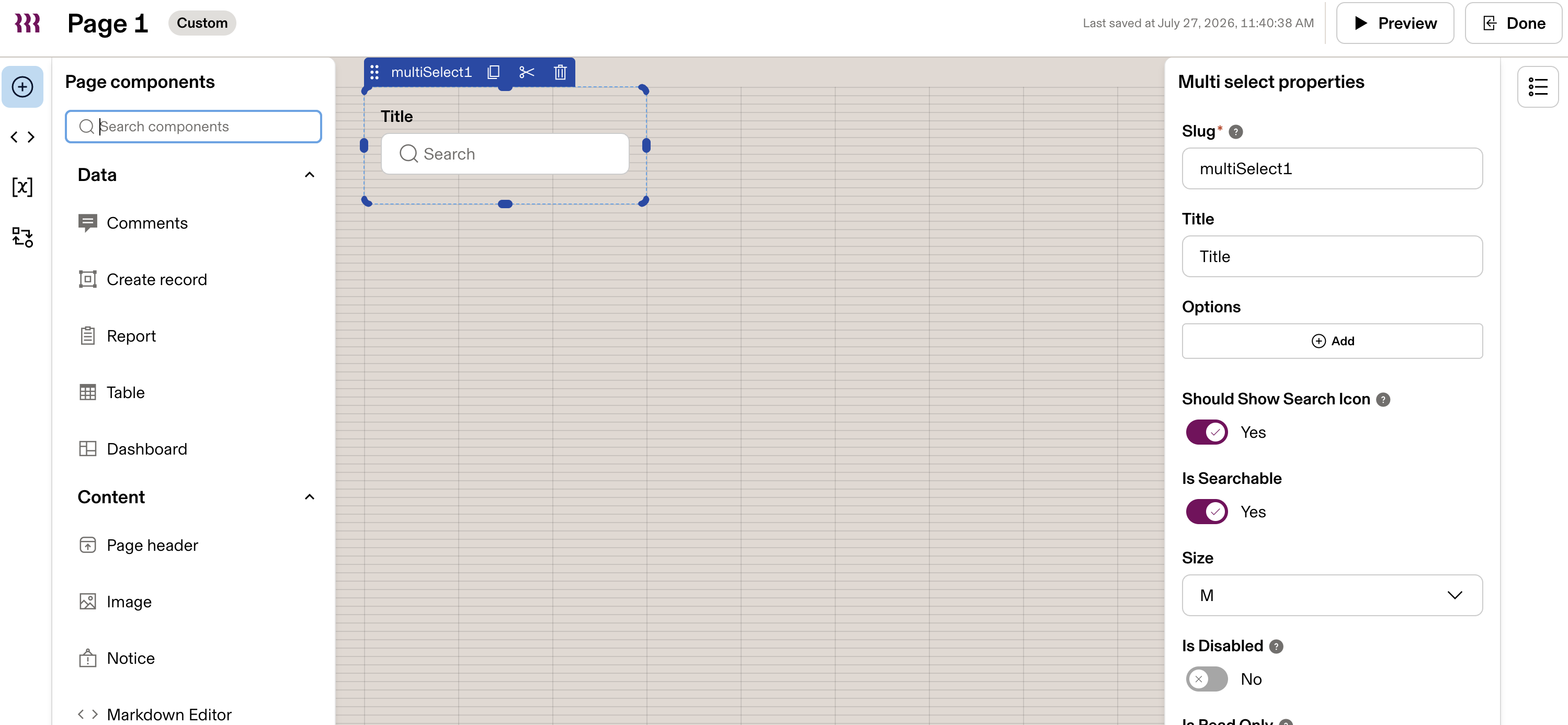
To add a component in the UI:
- Click the (+) icon in the top left corner to access the available components.
- Drag and drop a component onto the canvas to add it.
- Click a component to open the properties panel, where you can configure settings and add interactivity.
Interactivity
Event handlers
Event handlers add actions to a component so it interacts with other components based on logic you define.
For example, you could create a form and button to collect user meal preferences. Event handlers can pass form data to a function, which updates the underlying custom object.
Types of event handlers:
- Control component — Control another component on the canvas, such as refreshing a table.
- Notification — Display a custom notification in the app.
- Control action — Call a function to take an action in the app. Functions are custom JavaScript you write and deploy in Rippling.
- Navigate to URL — Navigate to a specific destination URL.
- Set URL Parameters — Add or update query parameters in the current URL.
For more on calling functions from components, see the Invoking Functions guide.
Custom logic with JavaScript
You can add custom logic to your app by writing JavaScript directly on a component to customize its behavior. For example, you could write code that disables or enables a component based on input from a previous component—if a user answers a question a certain way, enable a follow-up field.
If JavaScript is supported for a setting, you'll see a code icon in the top right corner when you hover over it. Click the icon to open the code editor.

Show and hide components
Use the Hidden setting to control visibility with JavaScript:
- The component is hidden when the logic evaluates to
true - It is shown when the logic evaluates to
false
Custom table actions
By default, table components let users view, create, edit, and delete records (according to their permissions), customize columns and rows, change sort order, and search for records.
To add custom actions to tables, write JavaScript functions and configure them as actions on the table's data source (custom object). See the Invoking Functions guide for details.
For more on table components, see the Help Center article about tables.
State management
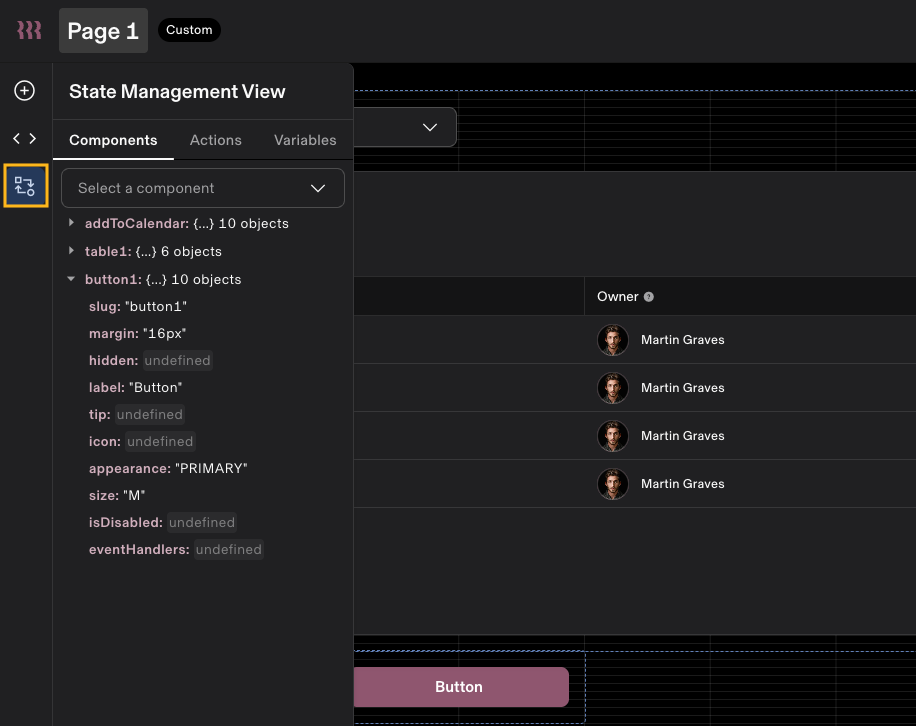
The state management view provides a consolidated, code-level overview of components and interactions. Click the status icon on the left side of the page to access it.
Variables
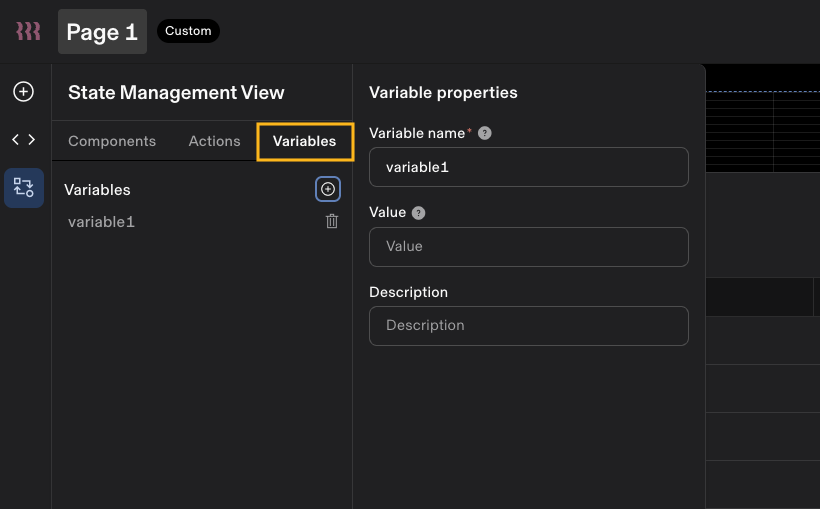
Within the state management view, you can create variables for re-usable data in your app:
- Ensure consistency — For example, if your app references your company's name or a sales quota in several places, add it as a variable so the same value is used everywhere.
- Move data across the UI — For example, use a function to calculate total commissions, store the result in a variable, and display it in a rich text field.
Global variables
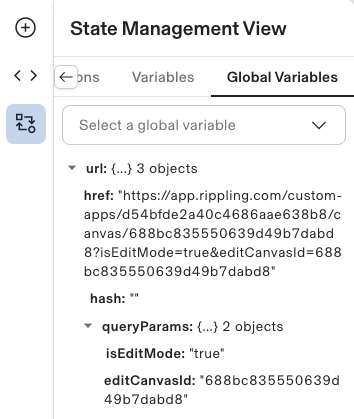
Global variables provide access to data stored automatically in memory, such as the URL and query parameters.
Block Manager
Blocks are chunks of custom content that you can embed in Rippling. Blocks can contain any of the available components in App Studio, such as images, text, video, notices, etc.
Blocks can also be customized to display dynamic content, using functions and the Rippling API.
See the following guides for more information:
- Create a block in App Studio
- Add custom object data to Rippling user profiles
- Managing Dynamic Content with Block Manager
Tips when working with custom apps
- Dates and times are formatted based on your app's configuration, not the user’s Rippling locale settings.
- Some components have minimum and maximum limits. If a user enters a value outside of those limits, the field will auto-adjust to the nearest allowed value.