Overview
A Rippling Function is JavaScript code written by you, but saved, deployed, versioned, and run in an isolated environment managed by Rippling.
Functions are useful when you want to perform multiple actions to streamline a process, especially when you want to leverage data stored in your Rippling account. One advantage of using a function is that you don't have to set up your own infrastructure to run your code, which streamlines and simplifies the development process.
For example, in just a few minutes, you can quickly create and deploy a function that performs a quarterly calculation for your Sales team or updates your CRM with data collected in a third-party system or custom application.
What can a function do?
| Operation | Example |
|---|---|
| Perform calculations and return results | Calculate a store's total sales for a specific date range |
| Execute conditional logic and loops | If the function was called from a list view, iterate over the records, otherwise use the record_id |
| Process and manipulate data | Reformat data from a third-party so it can be received by the Rippling APIs |
| Call Rippling APIs | Save data to a Rippling custom object |
| Call third-party APIs | Combine data from a third-party API with Rippling data |
See When to use Rippling primitives for more information on when to use functions vs. automations or transformations.
Requirements
- Permission to Create functions, Manage functions in the Developer app, or Create custom apps and custom objects. For more information, see Permissions for the Developer app.
- Custom objects - You must create at least one object and populate it with data.
- API token - Required if calling the Rippling APIs. Generate your token in the Developer app under the API Tokens tab, and save it for later use.
Create a new function
- From the sidebar, select Tools > Developer.
- Select the Functions tab and click New.
- Name the function, give an optional description, and confirm whether the function should run asynchronously.
The execution mode (is_async) is fixed when you create the function. You cannot change an asynchronous function to synchronous, or a synchronous function to asynchronous. To use a different execution mode, create a new function.
Asynchronous functions
Use the asynchronous option for functions with long-running work, such as payroll staging, bulk custom-object updates, external API pagination, backfills, large transformations, report generation, or automation-triggered processing that can safely complete in the background. Asynchronous functions can be executed through automations, UI triggers, or the Create a new function execution API endpoint.
Avoid running a function asynchronously for interactions where the user needs an immediate result (unless the function writes progress/status to a custom object and the UI can display this information). A function used as a custom pipeline stream should stay synchronous so it can return DataBridgeResponse to DataBridge.
A function used for an SDUI function page must always run synchronously (is_async: false) so the page receives the SDUI spec and server round-trip results directly. Leave run asynchronously disabled when creating the function. This execution setting is separate from using JavaScript async/await in your code.
Function anatomy
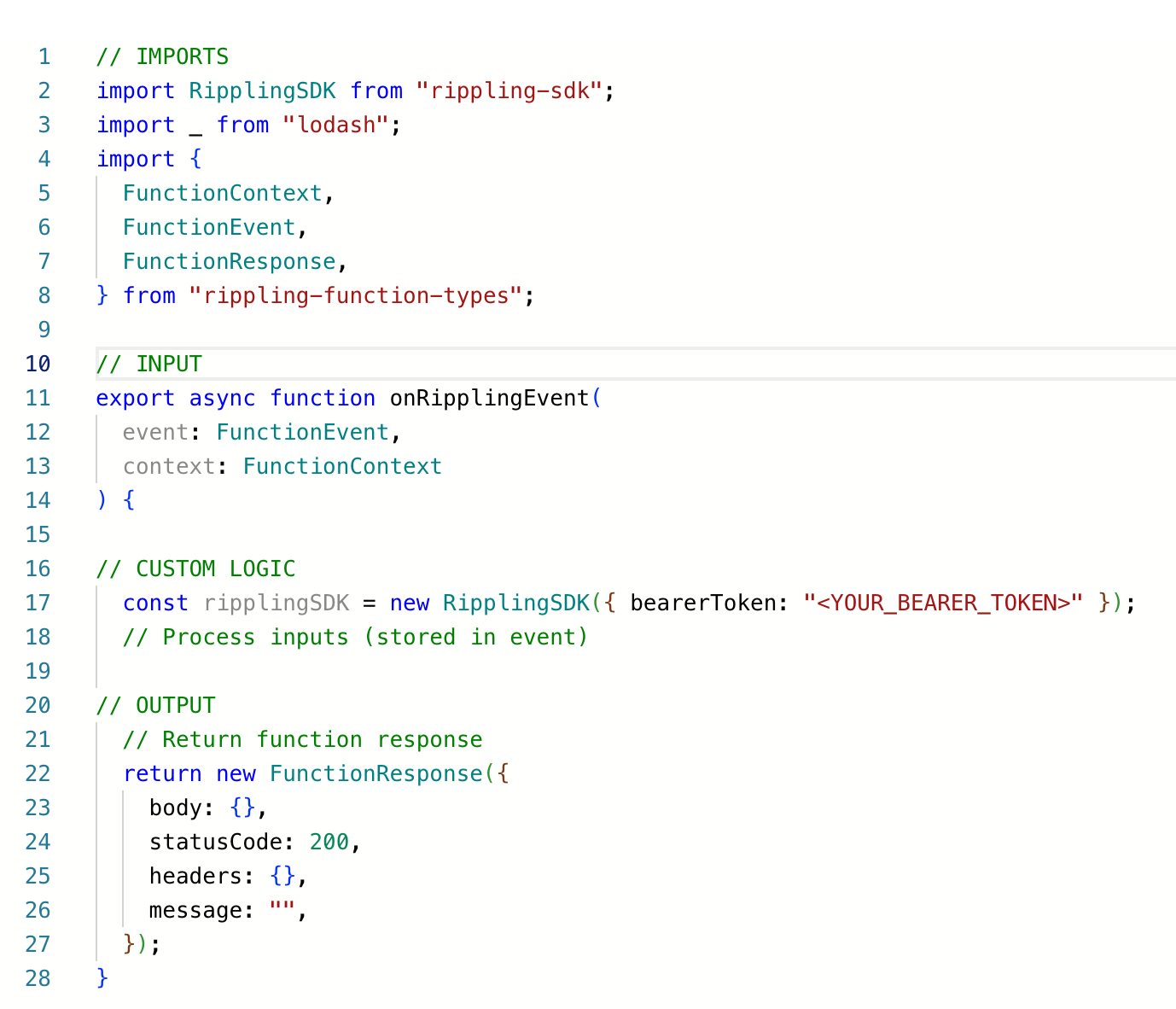
Rippling provides a template for your function code, so all you need to do to write your first function is add your custom logic. We suggest leaving the template code in place to simplify the process. The template includes:
Imports- Helper libraries that will make your life easier. We currently support:- lodash - Includes various JavaScript utilities.
- moment - Handles dates and times.
- Rippling SDK - Calls the Rippling APIs.
Inputs(Required) - The data that is passed into the function.event- contains information about the source of the invocation; most used (events.recordId(s), event.currentUser).context- contains information about the runtime environment.
Custom logic(Your code goes here!) - The logic that tells your function what to do.
💡 Tip Use comments to increase readability.
// This is a one line comment

/*
  This is a
  multiline
  comment
*/
Output- The response you want returned after the function is invoked. The supported response codes are:- 200 (OK) - Displays your message in a green box.
- 400 (Error) - Displays your message in a red box.
- 301 (Redirect) - Redirects to a new location.
Authentication
Use an API key stored in a custom setting
Replace YOUR_BEARER_TOKEN with your API key from the Developer app.
We recommend storing the API key in a custom setting and referencing it at runtime.
Use when:
- Your function runs outside of an interactive user session (e.g., automations or background execution).
- You need consistent, service-level permissions that aren’t tied to a specific end user.
- The function must run even when no user is actively logged in.
The API key grants access based on the permissions configured in the Developer app. If the key is compromised, anything within its permission scope may be accessed. You are also responsible for managing key rotation and access control.
Using a custom setting helps ensure the API key is not exposed directly in code and can be managed securely:
const token = context.settings["my_api_key"];
const ripplingSDK = new RipplingSDK({ bearerToken: token });
Use the invoking user’s bearer token
You can configure the function to use the bearer token of the person invoking it. In this case, requests run as the currently logged-in user.
Use when:
- The function is invoked from the UI.
- Actions should be scoped to the permissions of the logged-in user.
- You want enforcement of user-level access control.
Requirements:
- The function must be triggered from the UI so the system can determine the authenticated user.
The function runs with the permissions of the invoking user and it must be triggered from the UI. It is not appropriate for unattended automations or background jobs, and the behavior can vary depending on who invokes it and what access they have.
The function will execute with the privileges of the user who triggers it — which may exceed those of the function’s author. For example, if a Super Admin invokes the function, it runs with Super Admin permissions. Make sure to explicitly validate authorization logic to prevent unintended privilege escalation.
const rippling = new RipplingSDK ({ bearerToken: context.env.rippling_user_bearer_token });
Choose the approach that matches how your function runs and the access boundaries you want to enforce.
Sample input
The schema of the FunctionEvent object depends on the context from which it's invoked.
Custom object list view:
{
    "object_api_name": "pet__c",
    "record_ids": ["<object_id>", "<object_id>"],
    "current_user": "<object_id>",
    "app_id": "<object_id>",
    "list_view_id": "<object_id>",
    "page_id": "<object_id>",
    "button": "my_cool_button",
    "url": "https://app.rippling.com/custom-apps/objects/rto_expectation__c?app=rto_hub",
    "trigger_type": "list view",
}
Custom object detail view:
{
    "object_api_name": "pet__c",
    "record_id": "<object_id>",
    "current_user": "<object_id>",
    "app_id": "<object_id>",
    "layout_id": "<object_id>",
    "button": "my_cool_button",
    "url": "https://app.rippling.com/custom-apps/objects/rto_expectation__c?app=rto_hub",
    "trigger_type": "detail view",
}
Deploy a function
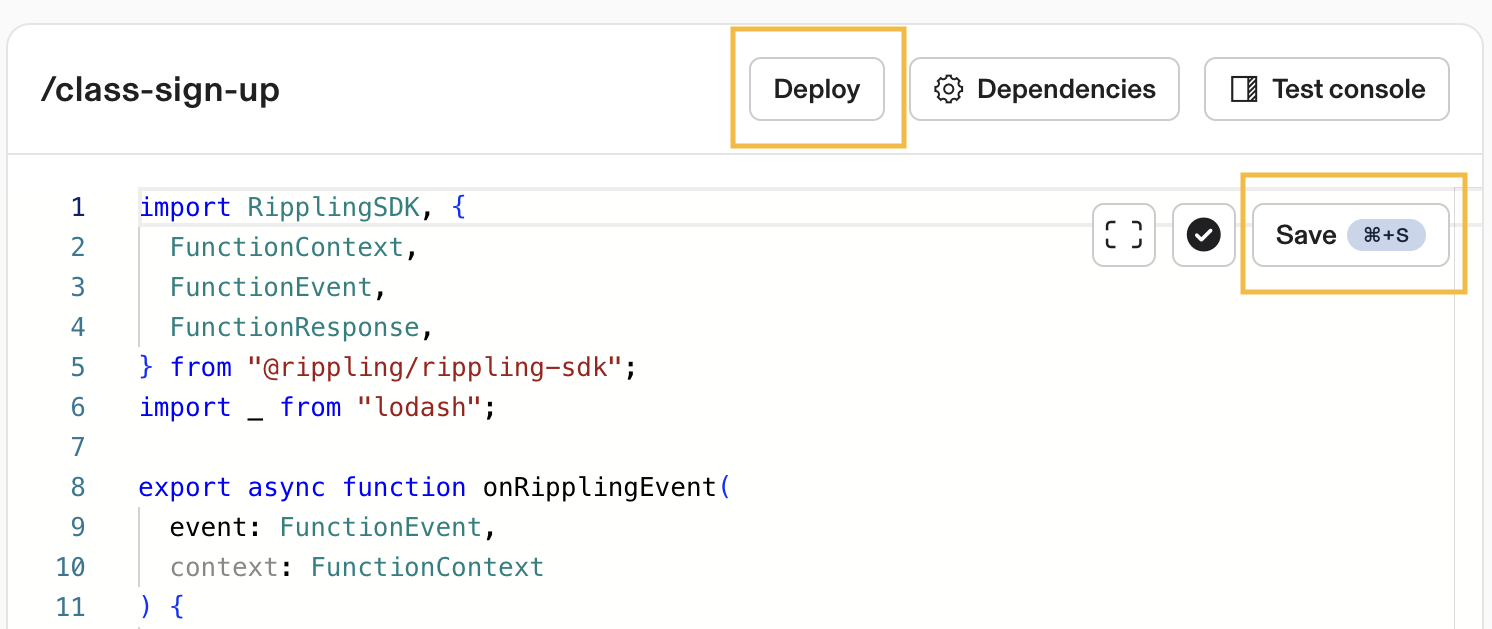
Deploy your function to save and use it immediately, or Save and deploy later from the Code tab.
View deployment logs
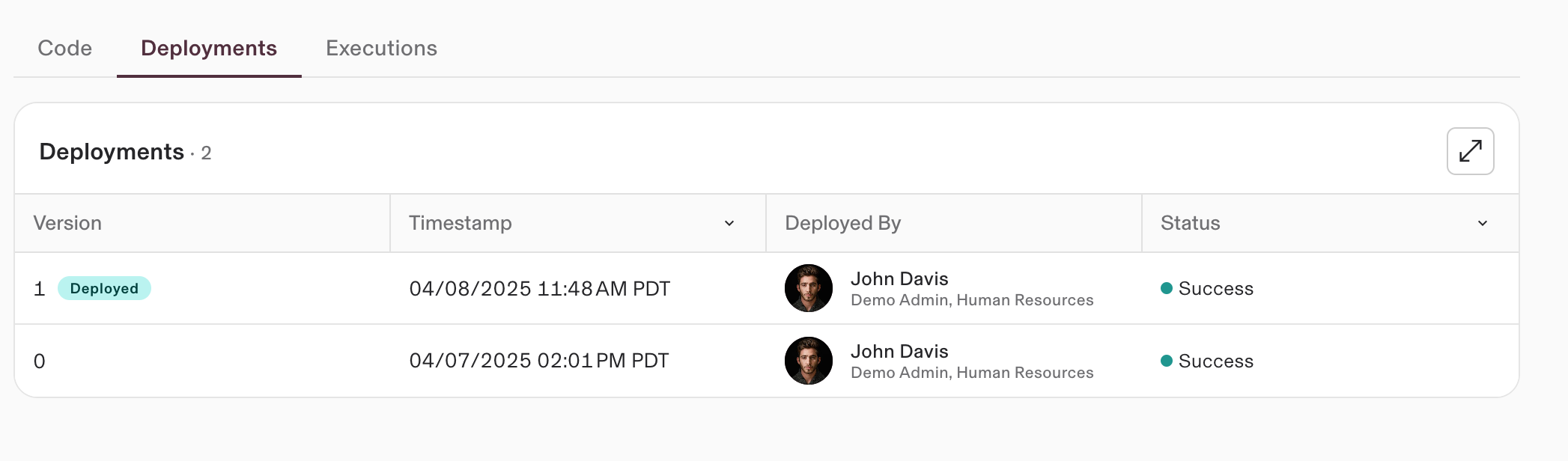
You can view deployment history from the Deployments tab. Each deployment includes details such as the deployment timestamp, the user who initiated the deployment, and the current deployment status.
Compare deployment versions
To compare deployment versions, select a deployment and open the Code tab. Use the version dropdown to choose another deployment and view a side-by-side diff of the function code changes between versions. This can help identify what changed across deployments and assist with troubleshooting issues introduced in recent updates.

Test a function
Once your code has been deployed, you can easily test it using debug statements, the built-in testing tool, and the logs.
Add debug statements
You can use console.log to debug your code and see how your function is manipulating the data:
console.log(“Your message goes here.”);
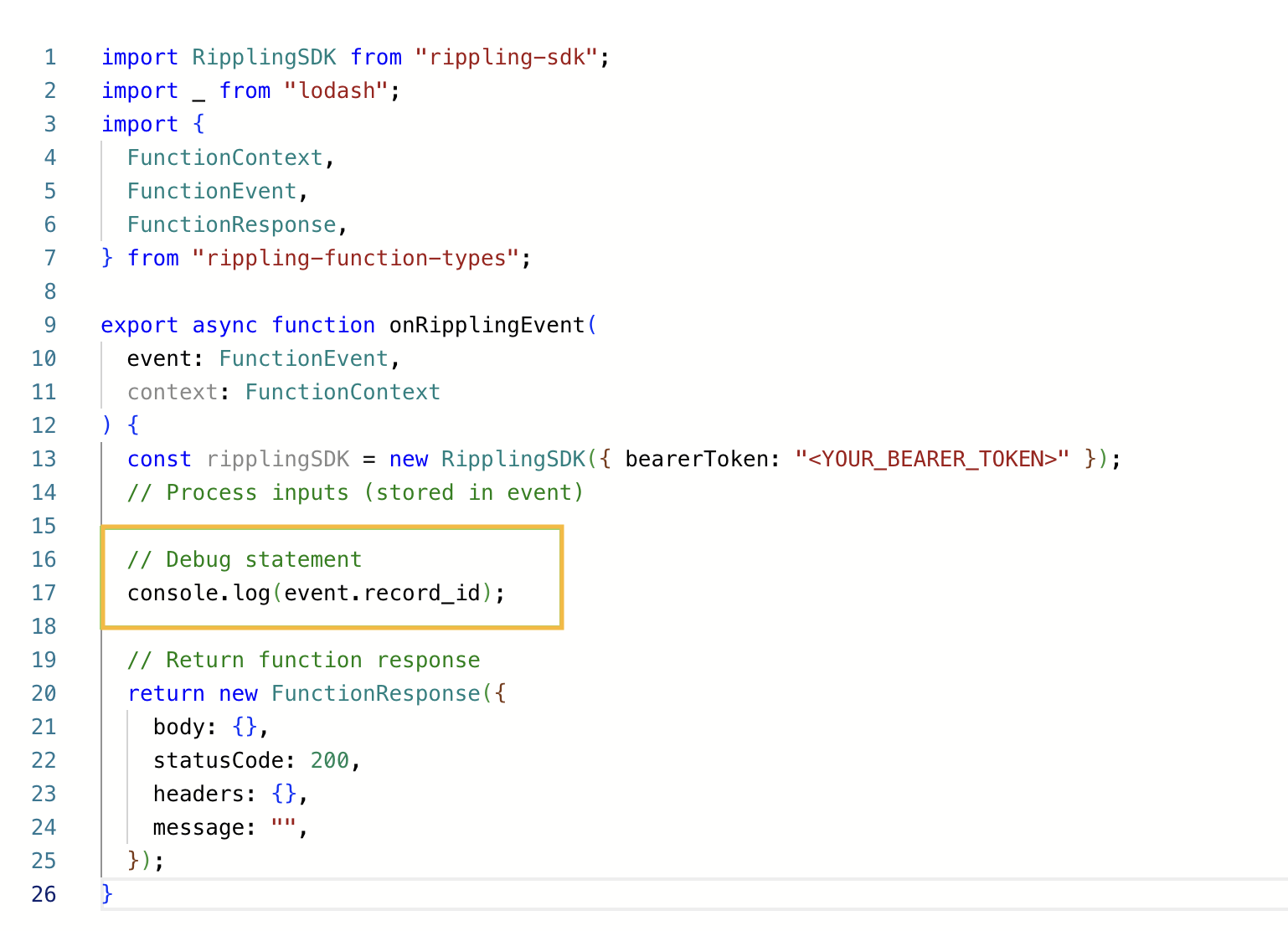
Log the data before and after modifying it, so you can compare.
console.log("The data before: " + data);
data = doSomething(data);
console.log("The data after: " + data);
Use the testing tool
Test your function from the Code tab using the built-in testing tool.
The function must be deployed to be tested.
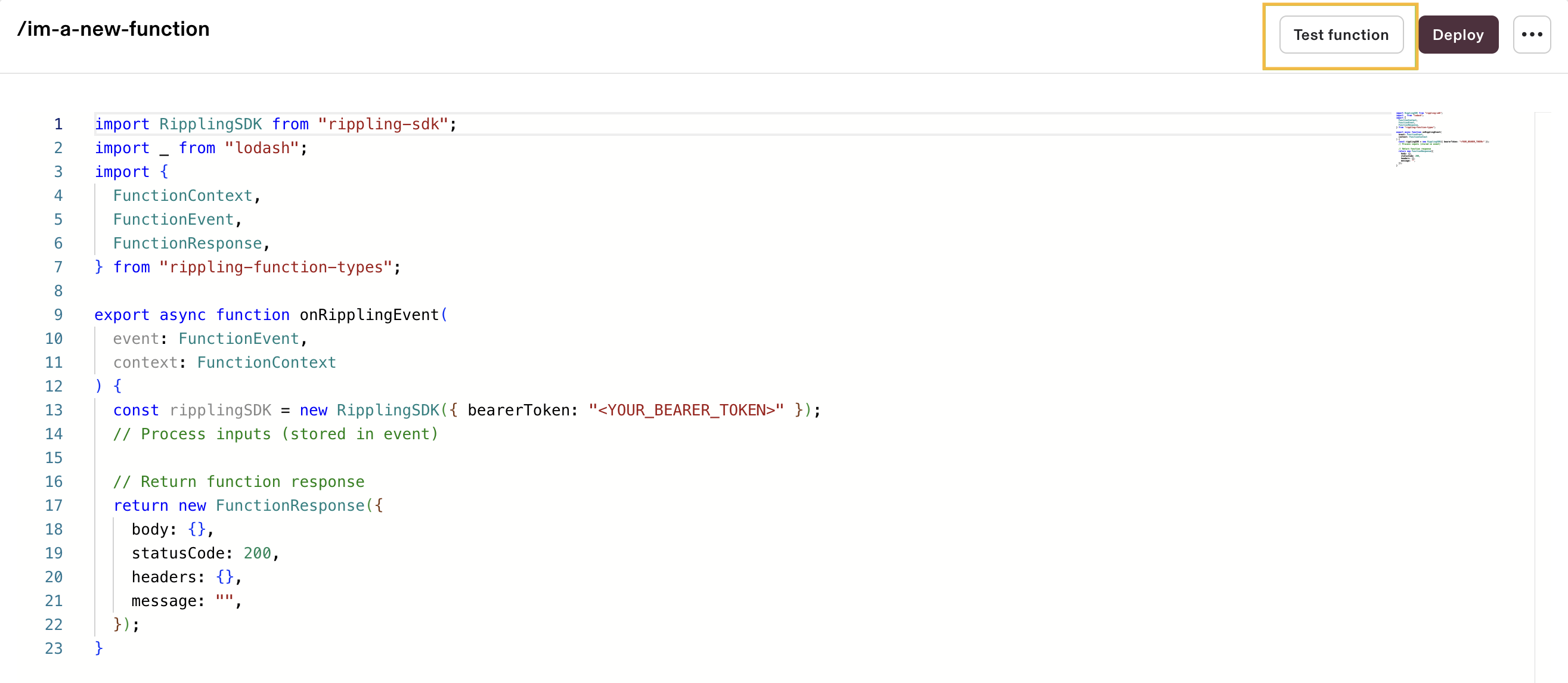
- Choose an input template - List view or Detail view.
- Edit your input values. You can also copy input values from the log to reproduce specific scenarios.
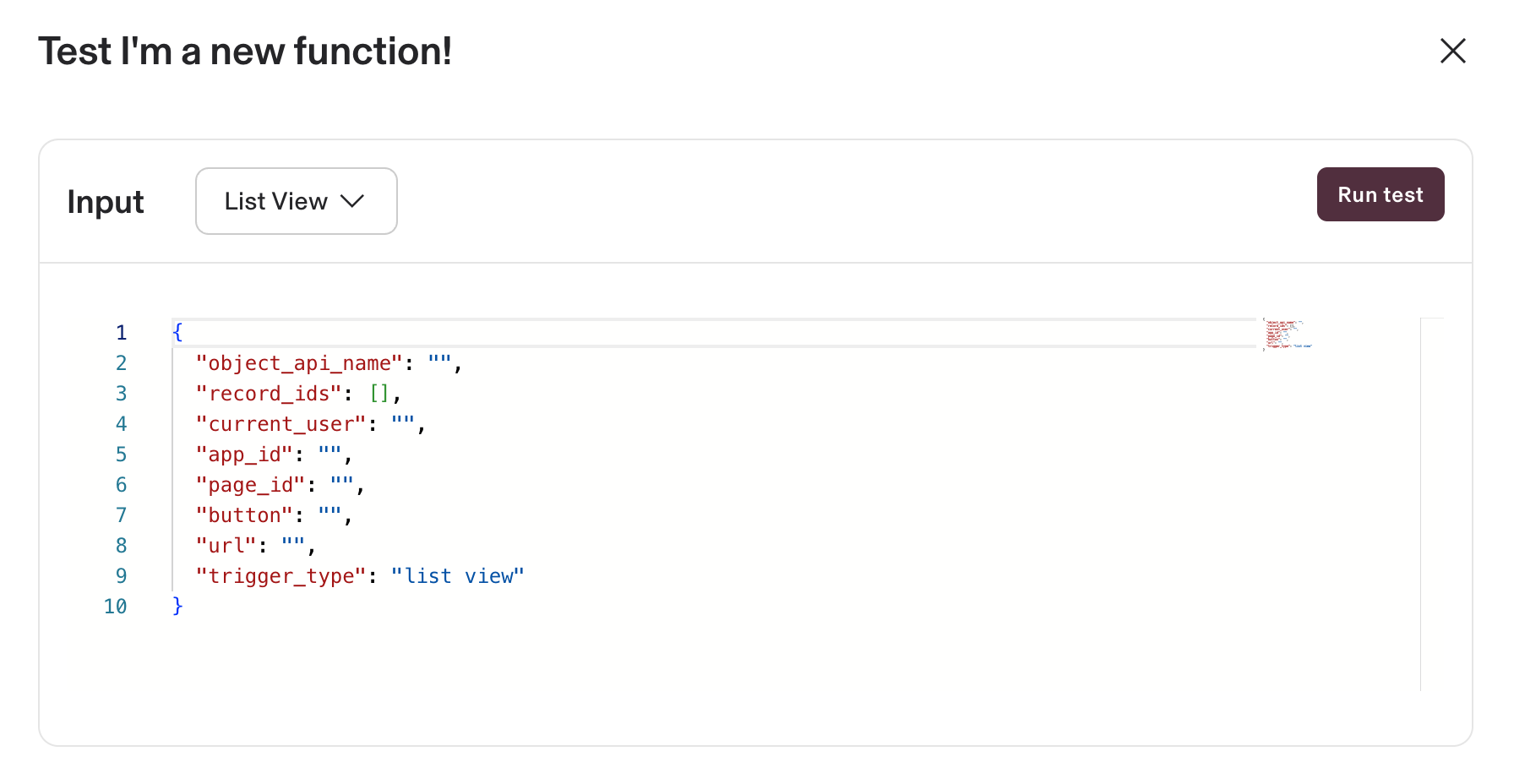
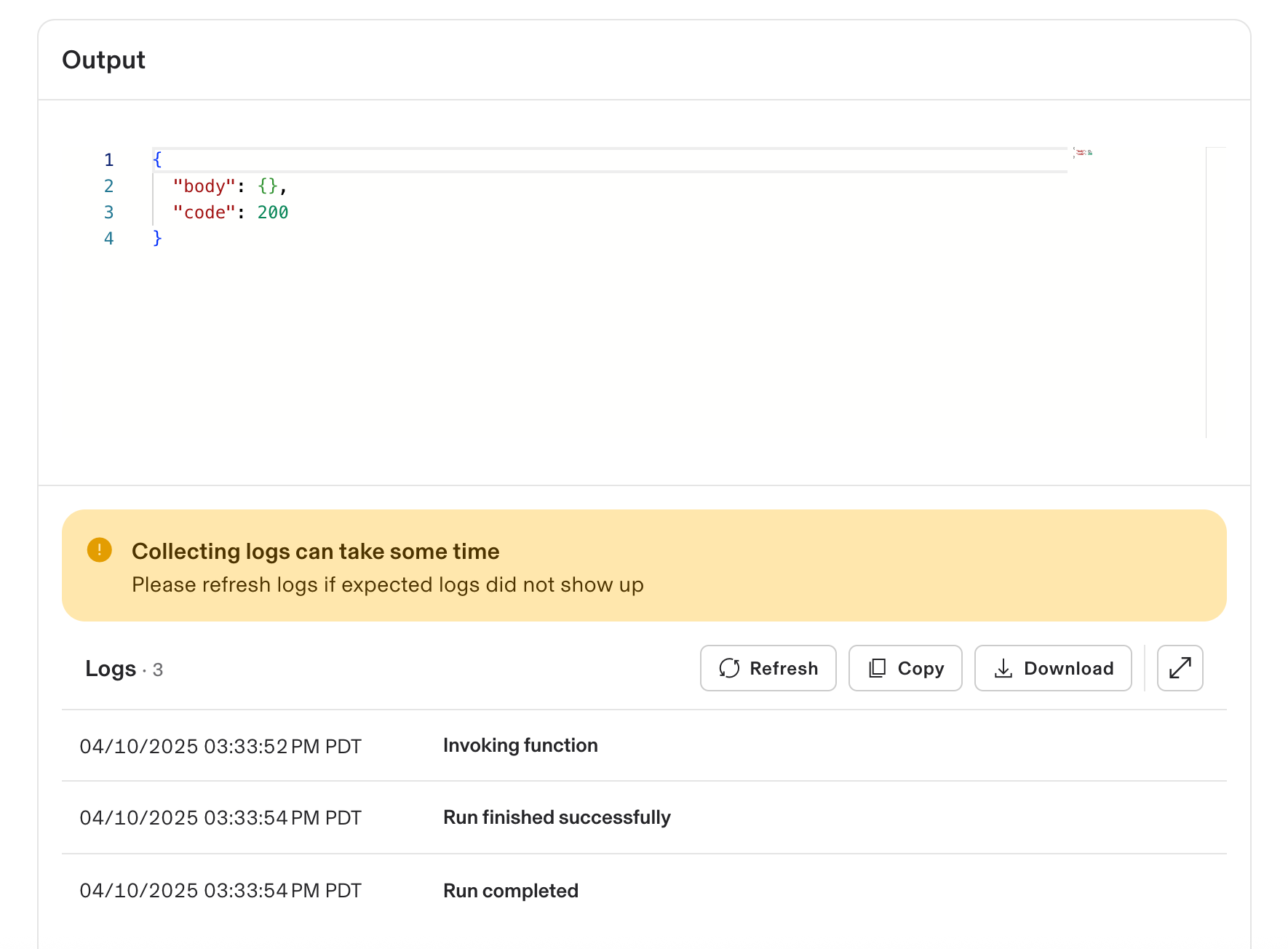
- Run the test.
- Check the output and logs.
Additional information
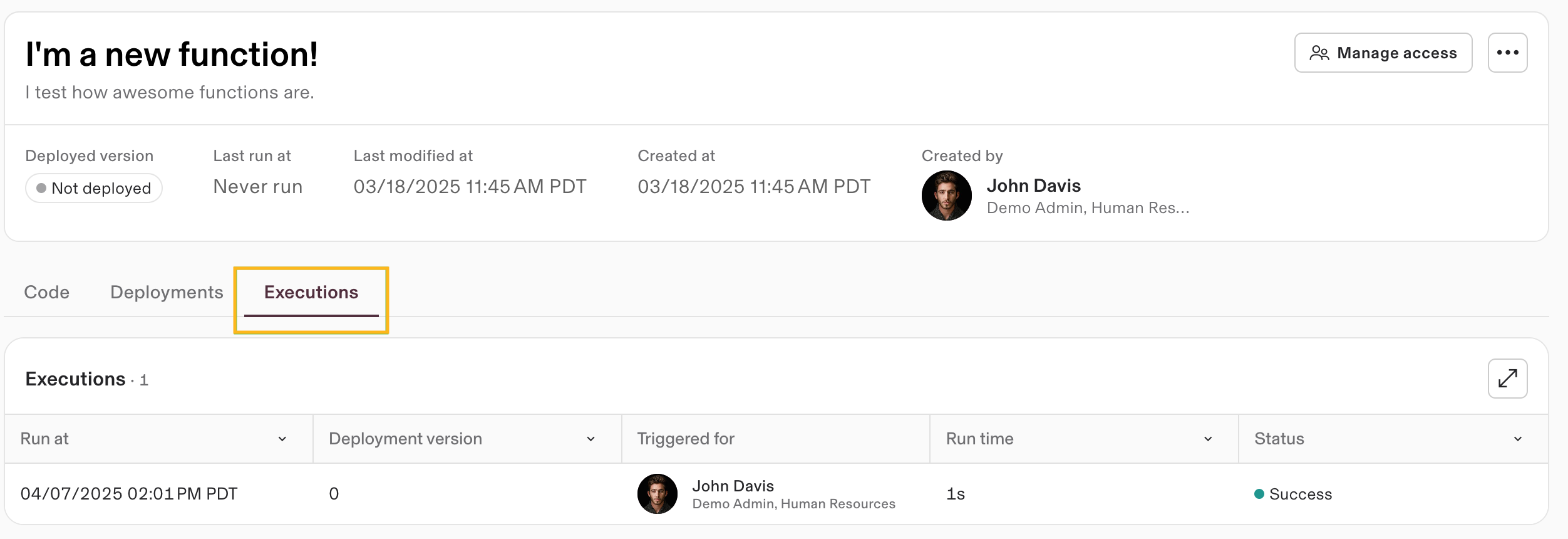
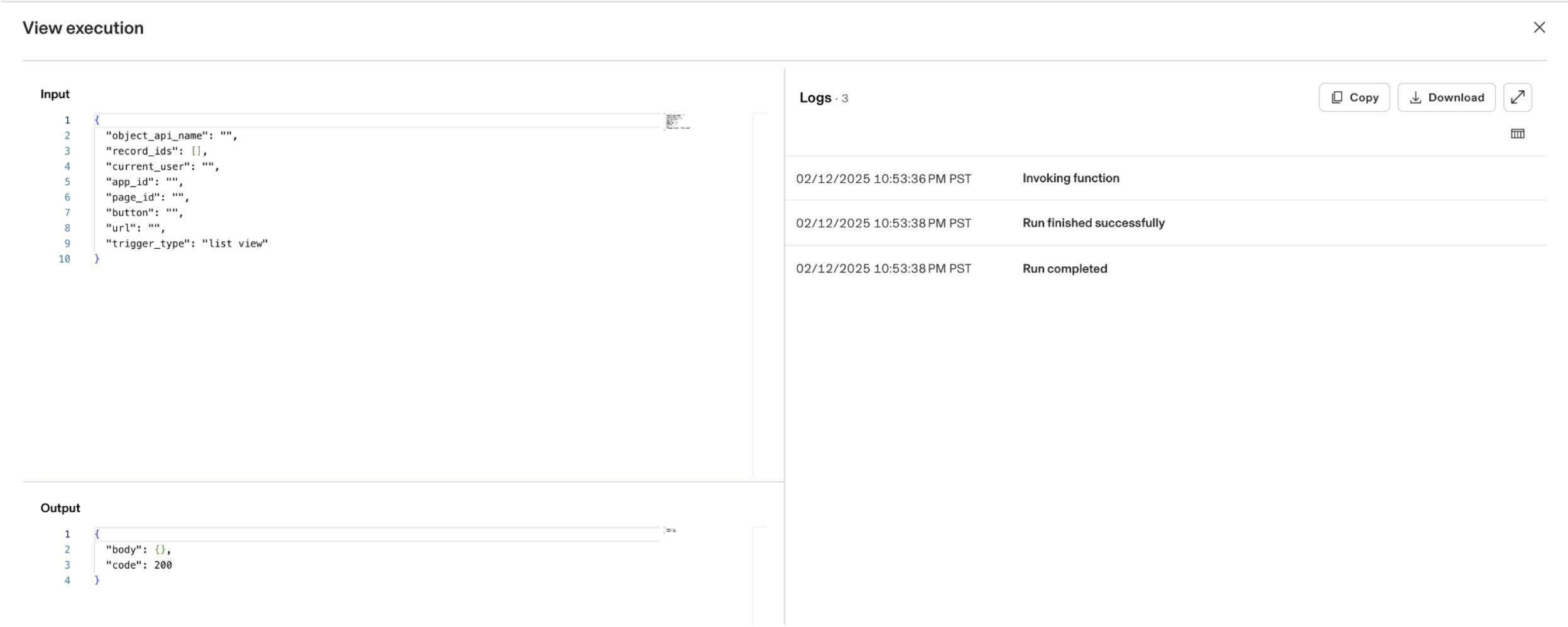
View execution logs
The execution logs provide information about each time the function was invoked. They can be helpful for auditing and recreating specific scenarios.
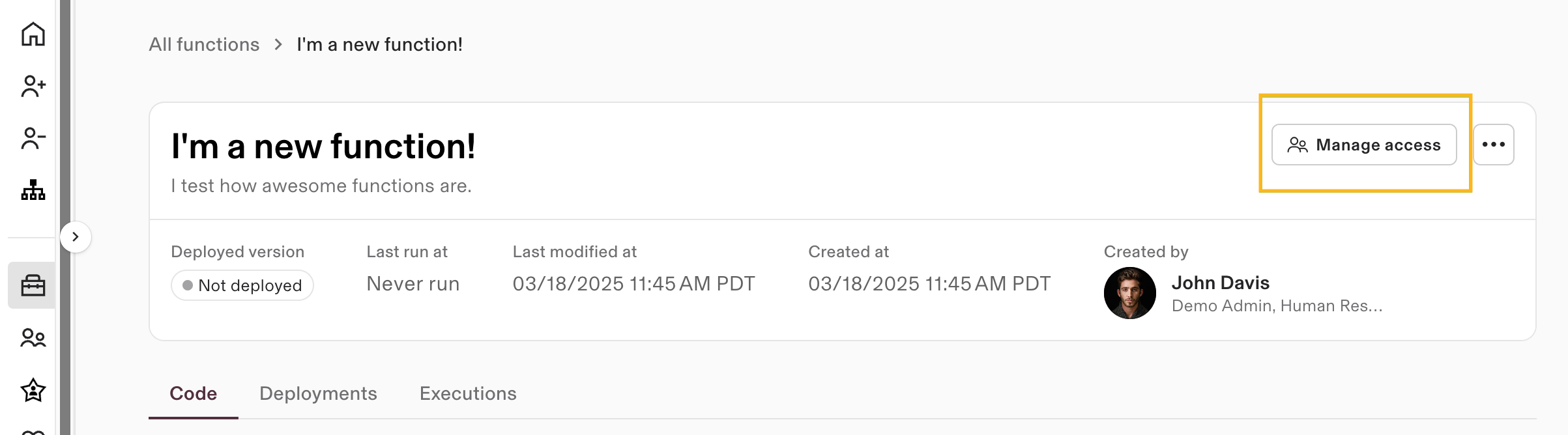
Manage access
You can set permissions for your function under Manage access.
To let other people view your SDUI function page, grant them both Viewer and Runner access to the function that backs the page.
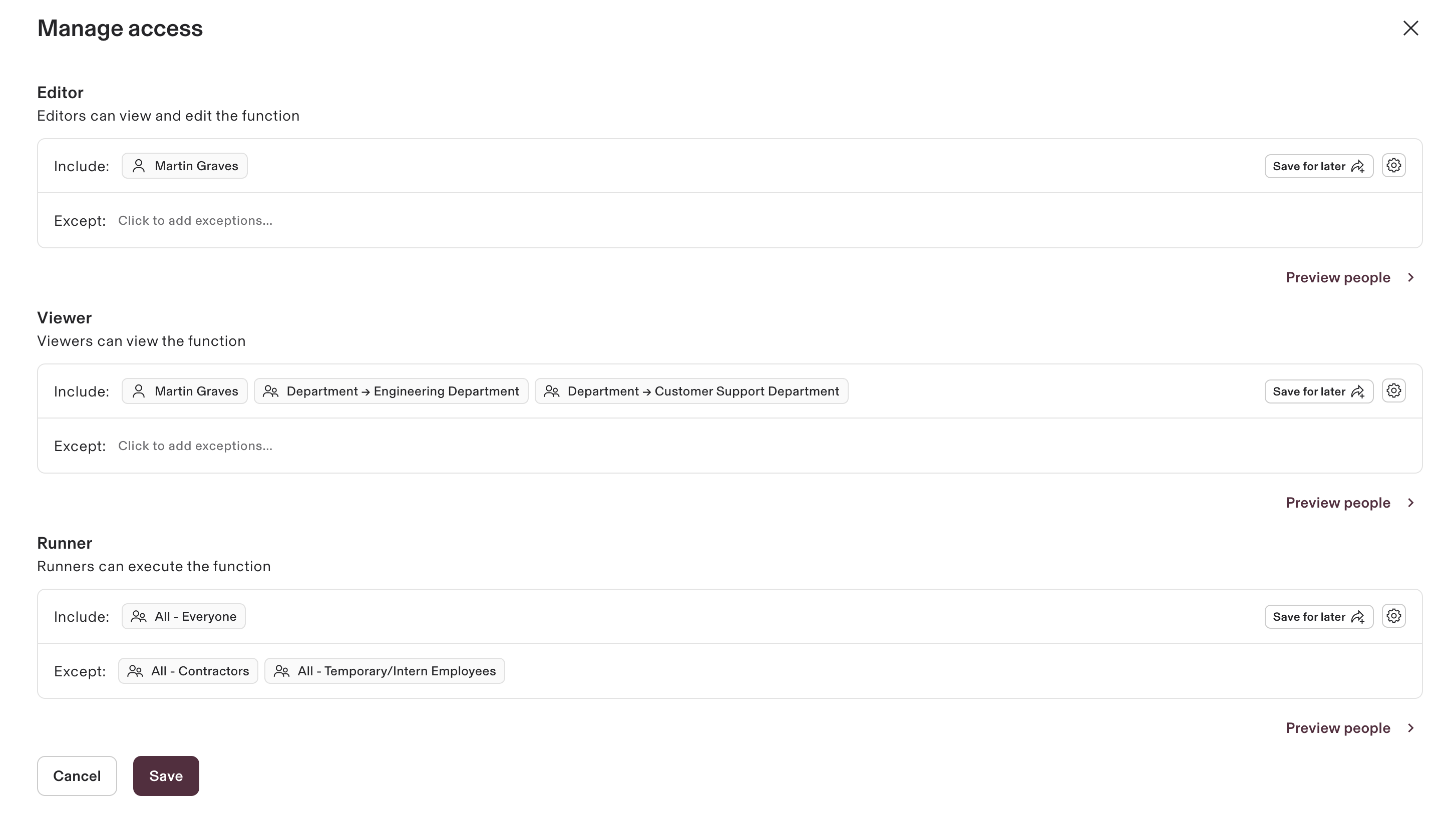
- Runner - Can execute the function.
- Viewer - Runner privileges, plus user can view the function code.
- Editor - Runner and Viewer privileges, plus user can edit and deploy the function code, view execution logs, and manage access.
If you are not a Runner, the action will not be visible in your UI.
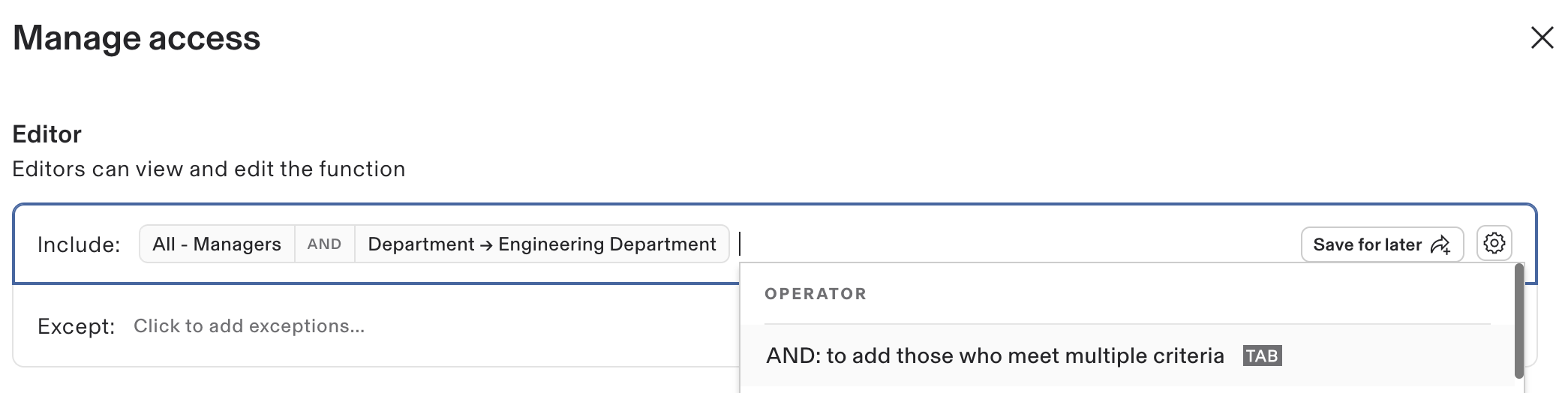
You can give access to individual people or use Supergroups to assign access automatically based on people’s attributes.
- Include - Provides access to those listed.
- Except - Removes access from those listed.
In this example, the user who created the function is the only person who can edit it. The creator and anyone in the Engineering department can view it, and everyone in the company except for temporary employees and contractors can run it.
You can also use the AND operator to filter groups by multiple criteria. For more information about managing access using Supergroups, see our Help Center article.
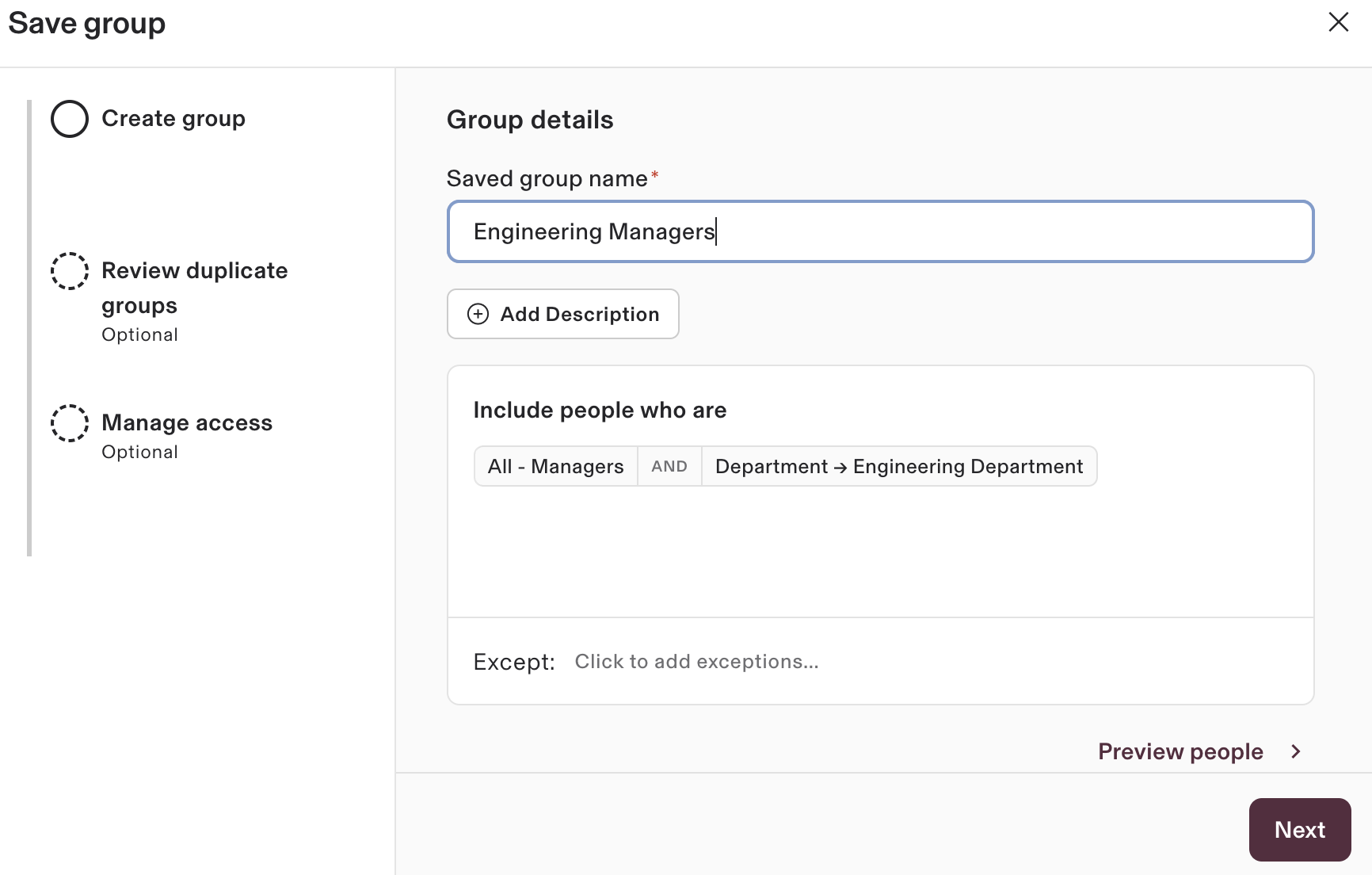
You can save groups to be used in other functions.
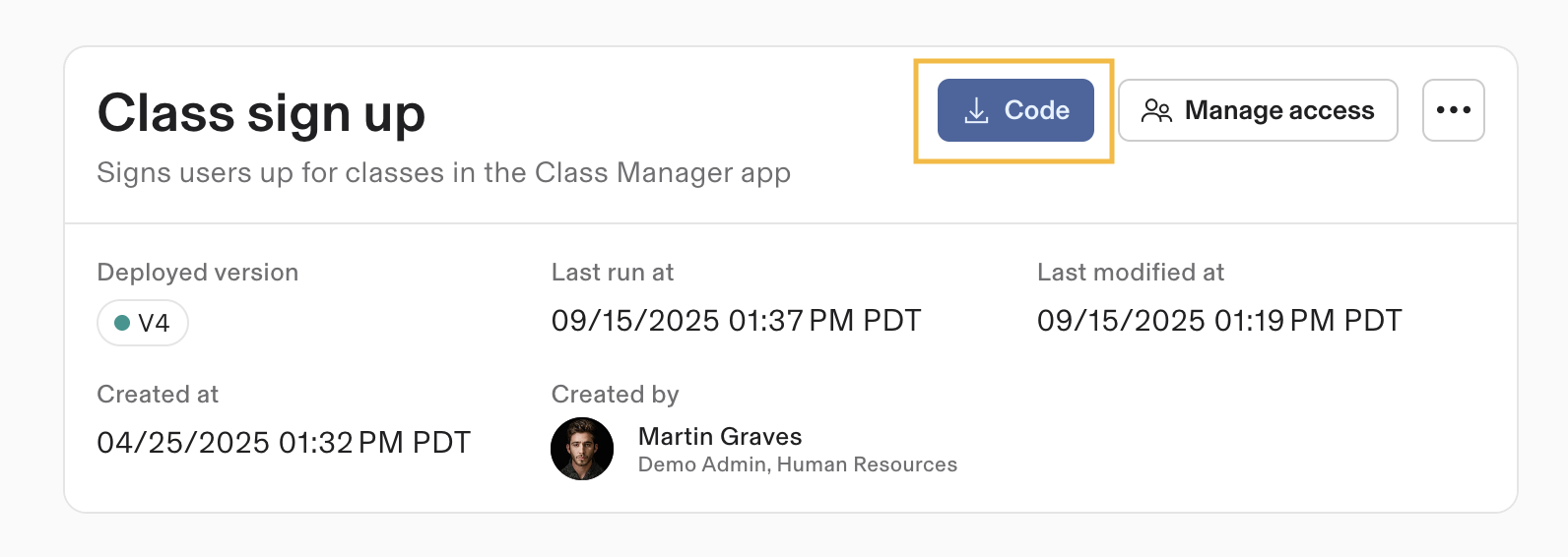
Download function code
If you would prefer to develop locally in your IDE rather than in the browser, you can download the source code to a .zip file by clicking the Code button.
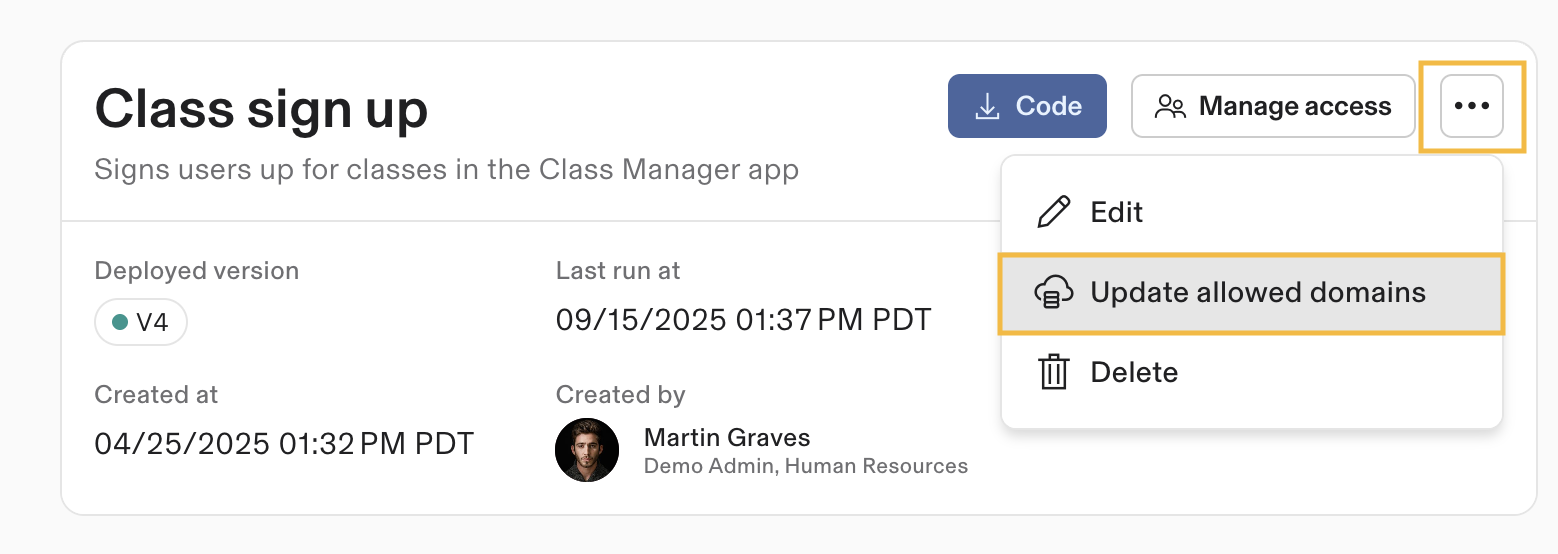
Update allowed domains
Setting allowed domains gives you control over which endpoints your function can call. This security feature ensures the code will not send requests to places you don't know about.
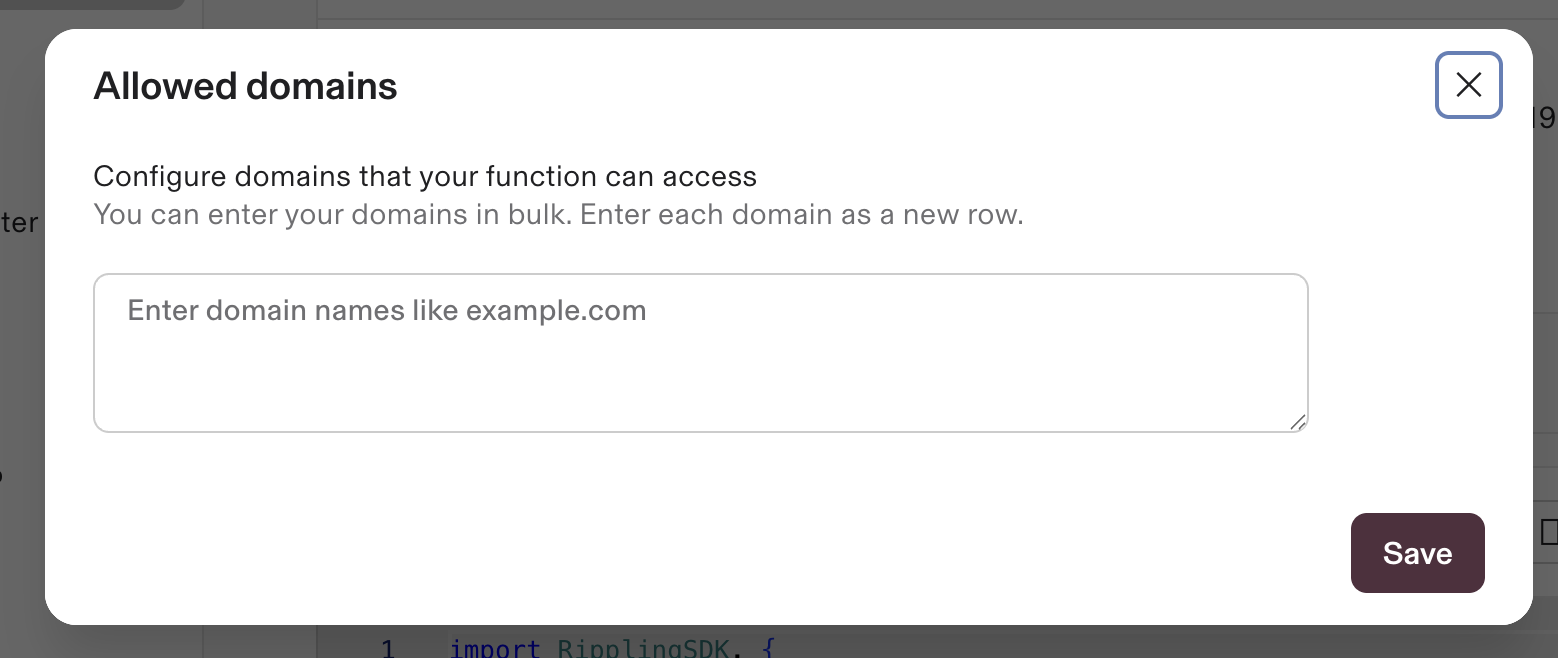
If your function makes API calls to your own endpoints that restrict incoming traffic to specific IP addresses, you'll need to add the following Rippling IP addresses to your allowlist:
52.11.37.16554.70.121.8854.214.241.136
All HTTP requests from Rippling Functions originate from these IP addresses.
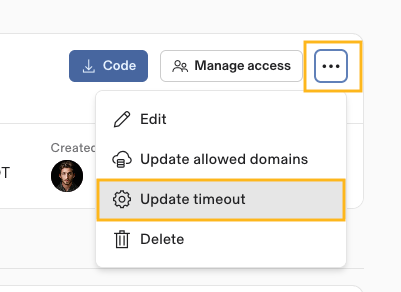
Update timeout
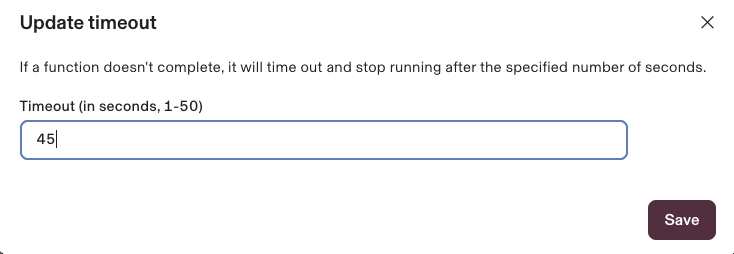
The timeout determines how long a function will run before stopping. The default runtime for Rippling functions is 20 seconds, but you can set custom timeout lengths for each function using the UI.
Dependencies
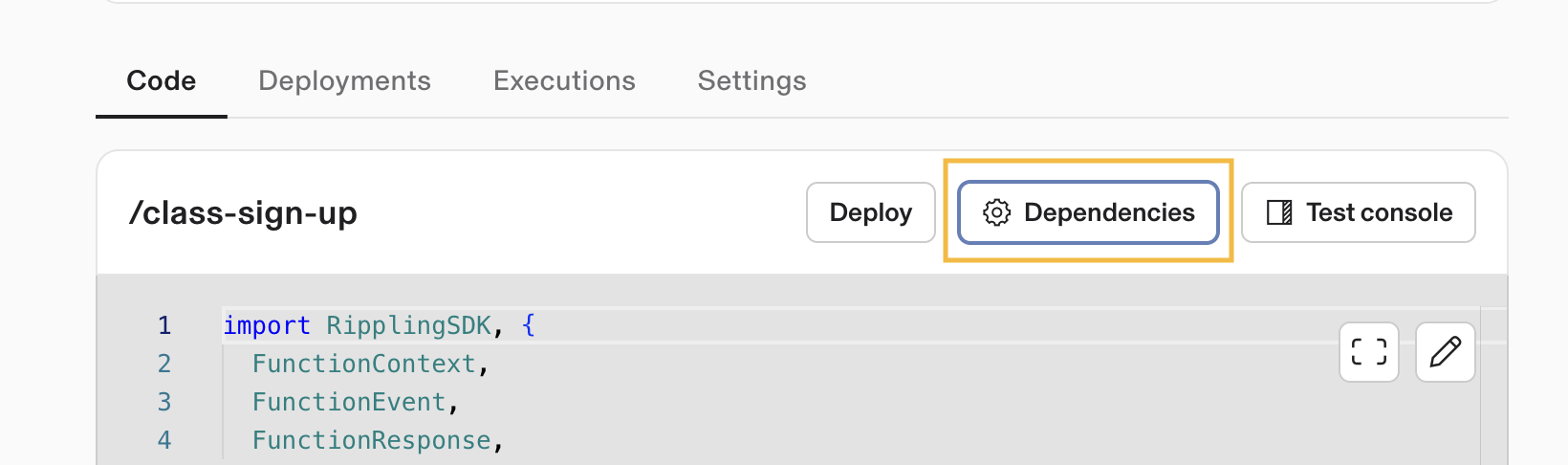
Dependencies allow you to use other open source libraries in your function. You can include any package from the public npm repository.