Overview
Transformations published as custom or big objects store query results in Rippling. A refresh re-runs the SQL and updates that stored data. Live objects are not stored and are queried when they’re accessed, so they don’t use refresh methods.
| Method | How it works |
|---|---|
| Nightly refresh | Transformation queries re-run nightly, and stored data is repopulated from the results. |
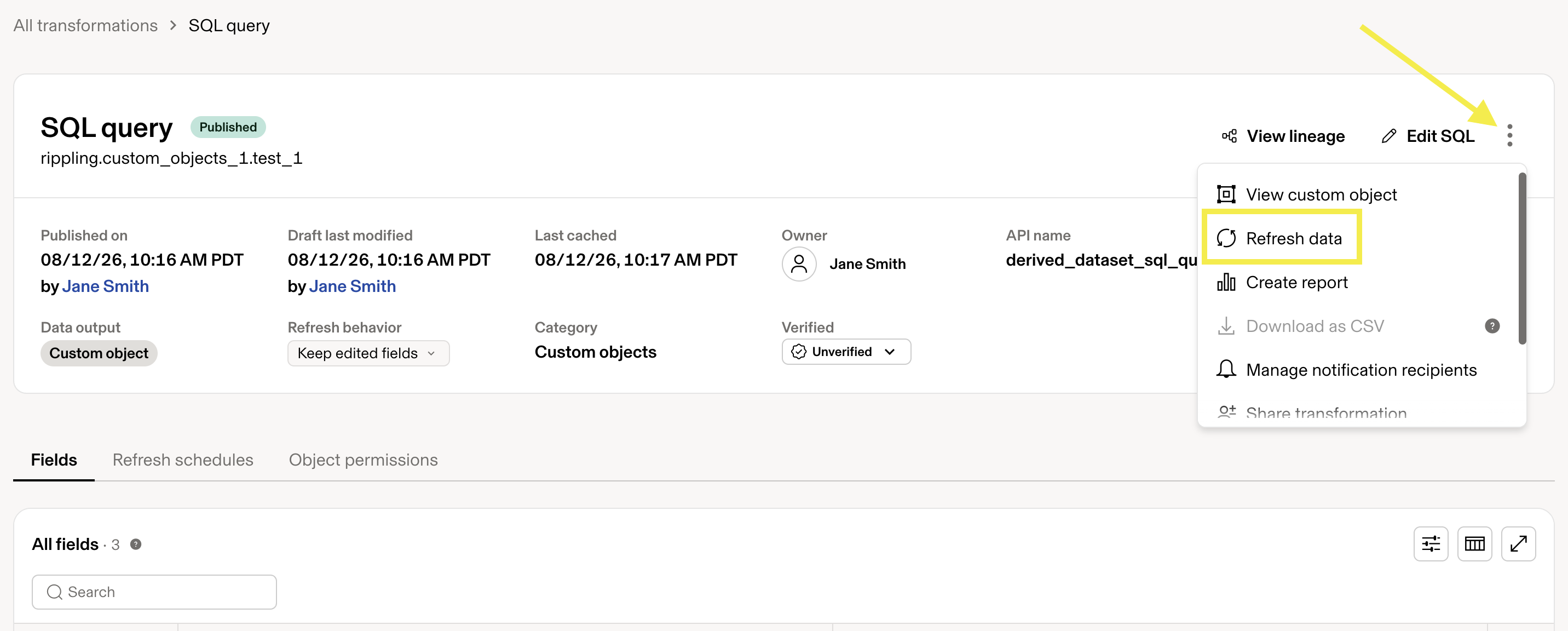
| Manual refresh | On the transformation’s detail page, click the three dots > Refresh data. Optionally include upstream transformations. |
| Refresh schedules | Run one or more transformations on a specific cadence from the Refresh schedules tab. |
| Automation step | Refresh using an automation. |
For custom objects, you also choose refresh behavior (how Rippling treats manual edits when a refresh runs).
Custom objects refresh behavior
When a refresh runs (nightly, scheduled, manual, or via automation), refresh behavior controls how Rippling treats manual edits on custom objects. Big objects don’t use these options.
- Default: Set when you publish the transformation, or change it later on the transformation details page. Scheduled and nightly refreshes use this default.
- One-off (manual only): When you click Refresh data, you can pick a different behavior for that run only. It does not change the saved default.
| Option | What happens |
|---|---|
| Keep edited fields (default) | Keeps manual edits on specific fields and updates all other fields. Retains manually-created records and respects manual removals. |
| Keep edited records | Skips any record that has manual edits. Retains manually-created records and respects manual removals. |
| Overwrite all records | Resets the object to match the transformation output. Overwrites manual edits, restores manually-removed records, and removes manually-created records. |
Refresh options
Nightly refresh
By default, custom and big objects from transformations refresh overnight. The run uses the transformation’s saved default refresh behavior.
Manual refresh
You can trigger a refresh on demand rather than waiting for the next scheduled refresh. Only Super Admins, Full Admins, and Transformations Admins can manually refresh a transformation.
- Navigate to Data > Transformations > select the transformation.
- Click the three dots in the top right-hand corner.
- Click Refresh data.
- If the query references other transformations, choose:
- Refresh only this transformation.
- Refresh this and upstream transformations.
- (Custom objects) Optionally pick a one-off refresh behavior for this run.
Refresh using an automation
Use an automation step to refresh a transformation when a specific event happens instead of waiting for a nightly refresh or scheduled run. Once the Developer app is enabled for your company, you have access to Automation Studio. However, you still need access to the transformation you want to refresh. For more information, see Permissions for the Developer app.
First, configure the automation trigger:
- Navigate to Tools > Automation Studio > select Create automation.
- Name the automation and select Choose your automation trigger. For this example, choose the trigger for ATS offer letter is signed.
- Complete any trigger-specific fields, then click Save.
Next, define the Refresh transformation automation step:
- Select Refresh transformation from the left-hand sidebar and drag it under the Automation trigger in the main editor area.
- Click into Refresh transformation to name the step and choose the transformation to refresh. Only custom and big objects appear here.
- Select the Include upstream dependencies checkbox to also refresh transformations that the selected transformations depend on. Click Continue.
- Select Save in the top right-hand corner to save as a draft or publish the automation.
- Select Activate this automation to complete publishing.
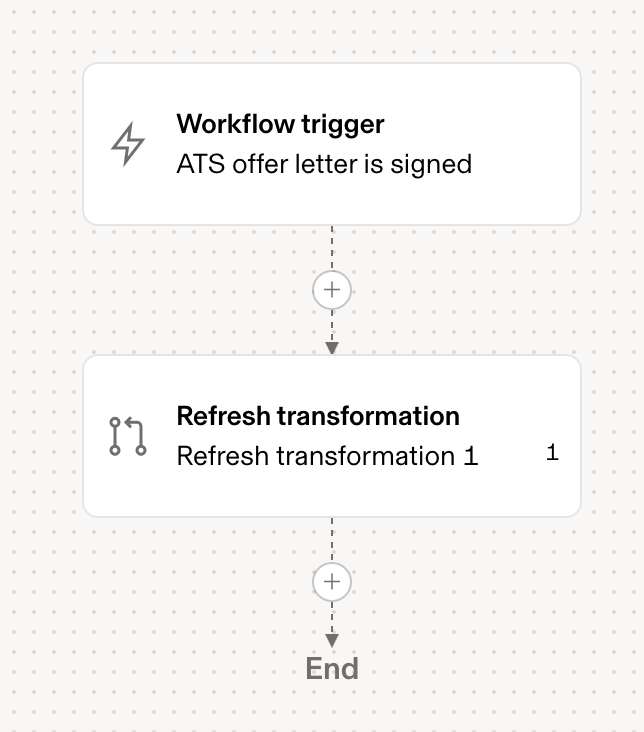
With this automation, when an offer letter is signed, Rippling runs the automation and refreshes the selected transformation.
Refresh schedule
Use a refresh schedule when several transformations should refresh together, or on a cadence other than nightly. Rippling includes some schedules by default, and you can disable or change them.
Create a refresh schedule
Only Super Admins, Full Admins, and Transformations Admins can create new refresh schedules.
To create a transformation refresh schedule:
- Navigate to Data > Transformations > Refresh schedules.
- Click +New schedule.
- In the Frequency section, define when the refresh should occur.
- In the optional Description field, enter a brief summary of the schedule's purpose.
- Click +Add transformations to add transformations to the schedule. Click the + icon next to each transformation you want to add.
- After adding transformations to the schedule, toggle the Refresh upstream transformations option:
- Yes: This ensures that when the transformation refreshes, all of the upstream transformations that serve as data sources for this one are also refreshed. Note that if you do not have access to all upstream sources, this will trigger an additional approval flow.
- No: Only the specific transformation will refresh using the existing data in the system.
- Click Create to save the schedule.
Update a refresh schedule
Anyone with permission to access the Transformations app can submit updates to a refresh schedule. You can only add and remove transformations referencing objects you have permission to manage.
To update an existing refresh schedule:
- Navigate to Data > Transformations > Refresh schedules.
- Click the pencil icon on the schedule you want to update.
- Make your changes (refer to the section above for details) and click Update.
Super Admins, Full Admins, and Transformations Admins can apply updates immediately. Everyone else submits a request, which goes to those admins in the Approvals app and takes effect only after approval. For more information, see Get started with approvals.
Disable/remove a refresh schedule
- To disable a refresh schedule so it doesn’t run, click the three dots at the end of the row and select Disable. You can come back and enable the schedule at any time.
- To remove a refresh schedule from Rippling, click the three dots at the end of the row and select Remove. The schedule is removed and cannot be restored.
Monitor refresh status
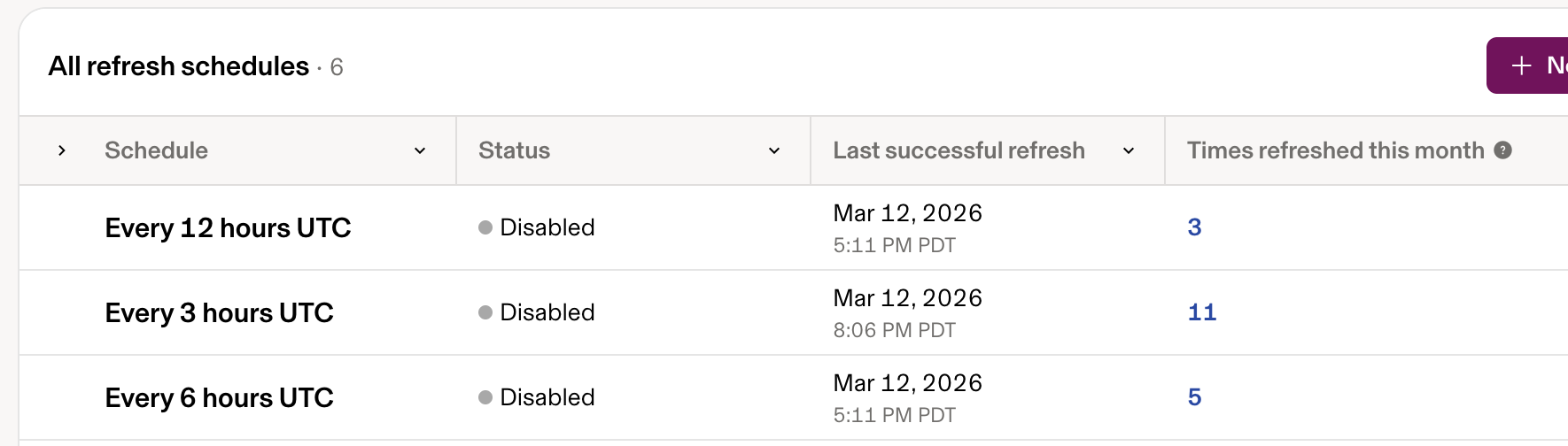
To monitor the status on a refresh schedule, navigate to Data > Transformations > Refresh schedules.
- Last successful refresh: Date and time of the last run that completed without errors. If this is empty or older than you expect, the schedule may be disabled, still in progress, or failing.
- Times refreshed this month: How many times this schedule has run in the current month. Each run history includes a status such as In progress, Succeeded, or Failed.