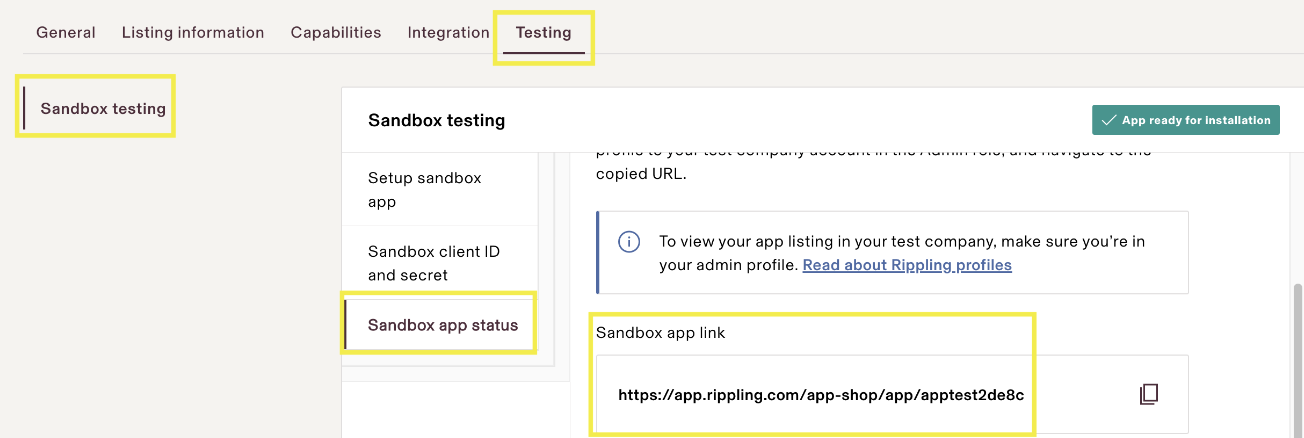
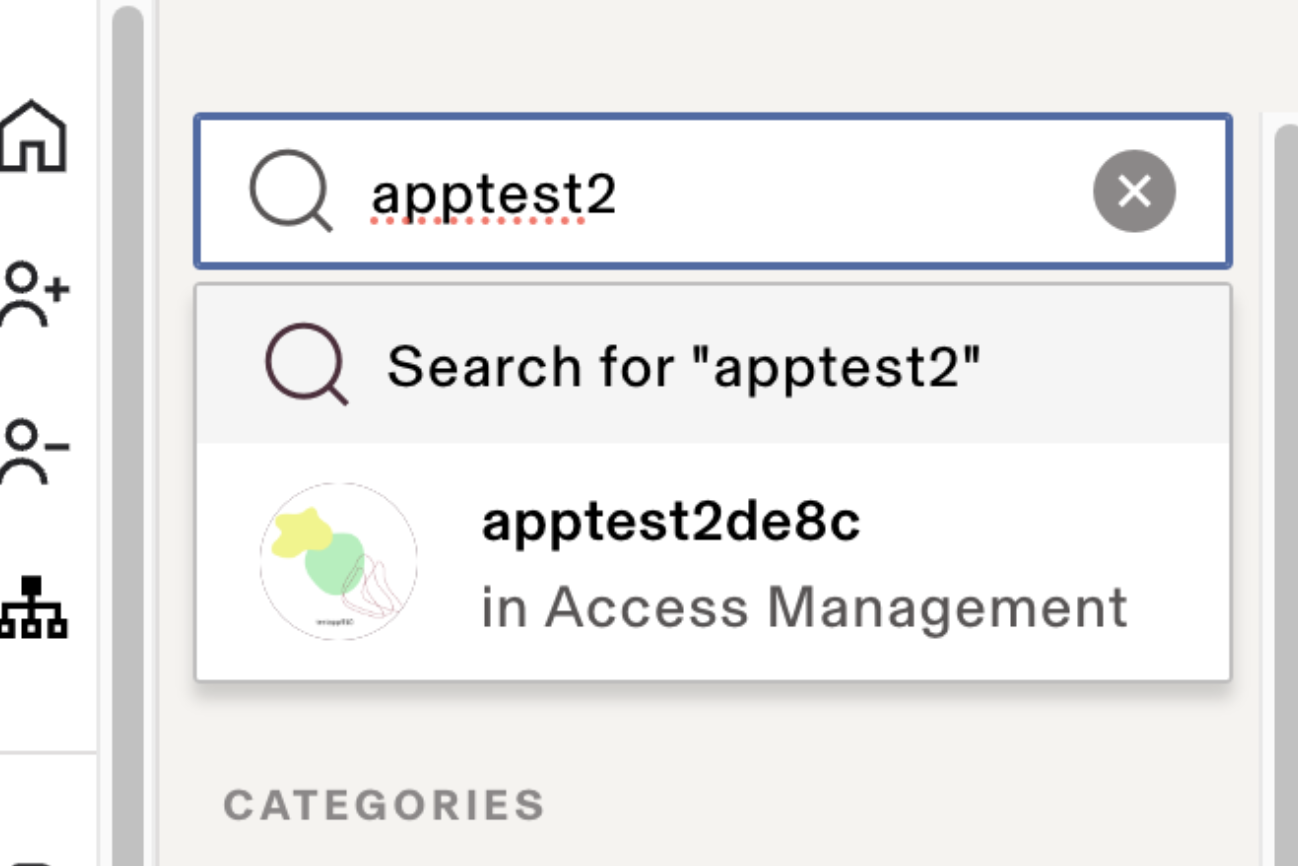
To install your app and start making successful API calls to Rippling, you will have to first deploy your sandbox app to your test company and then once deployed, install the app.
Your sandbox app will only be accessible by your test company and customers will never be able to access, view, or install your sandbox app.
While each app listing can have one or many listing versions, there can only be one sandbox listing version for a given app listing. You can test with it, uninstall it, sync changes to it, and reinstall it as you like using your test company.
The first time you deploy your sandbox app can take up to 30 minutes to complete!
Deploying a sandbox app
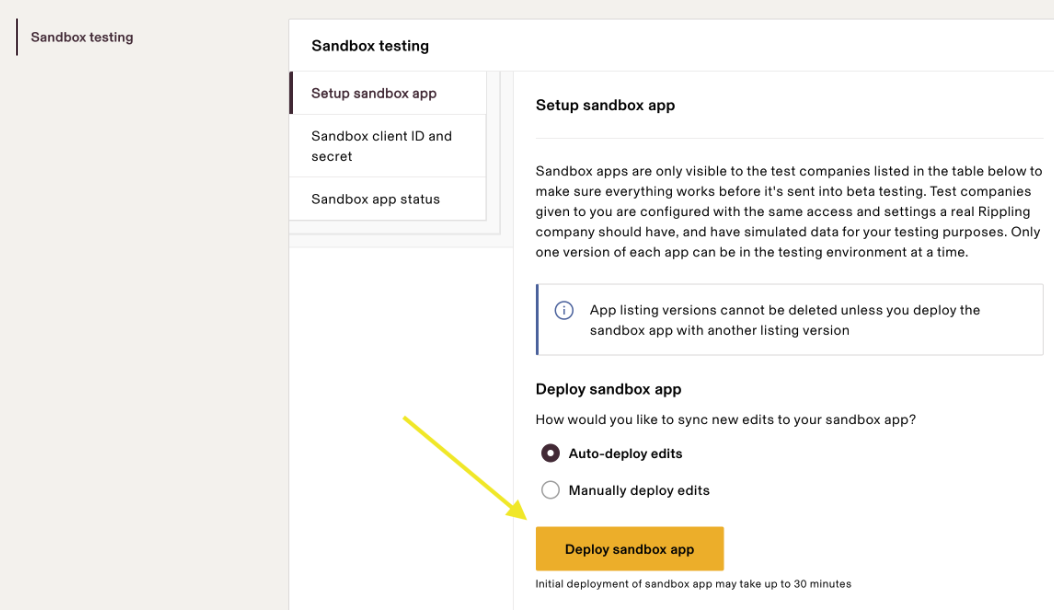
To deploy your sandbox app, navigate to the Testing > Sandbox testing tab. Click on the Deploy sandbox app button. You can choose to have any new edits auto-deploy or require manual deployment. Confirm that you would like to deploy this sandbox app.
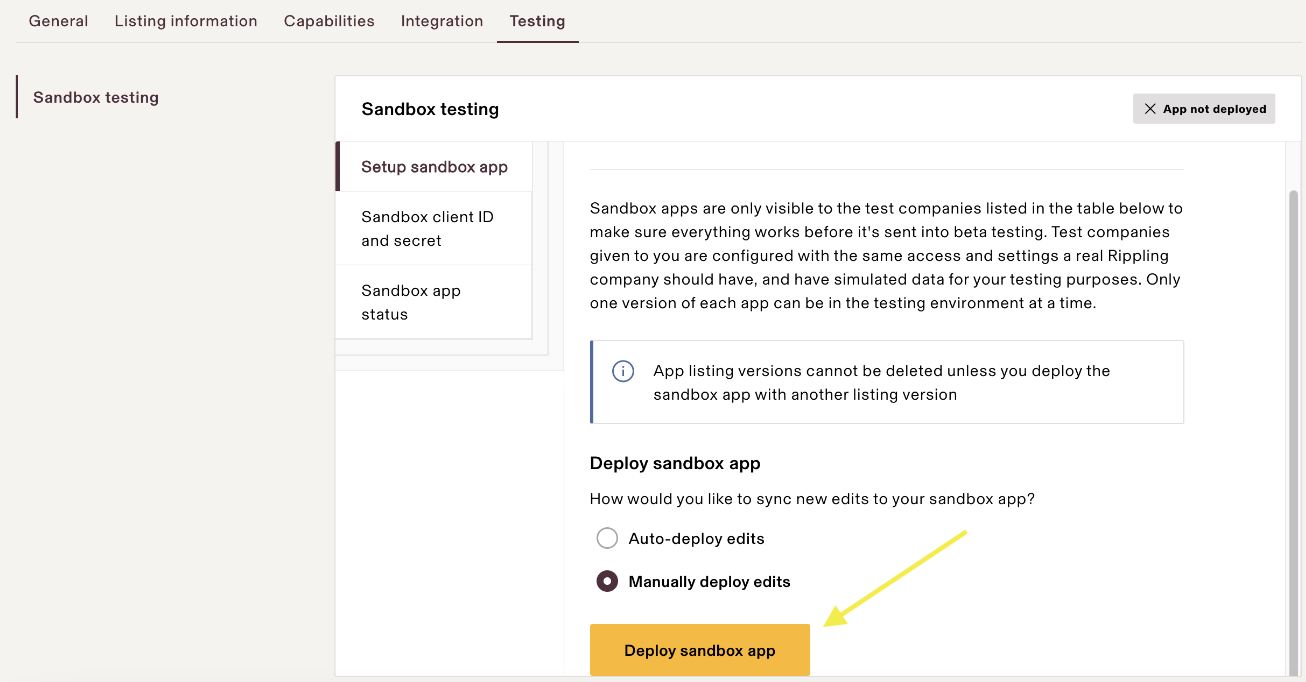
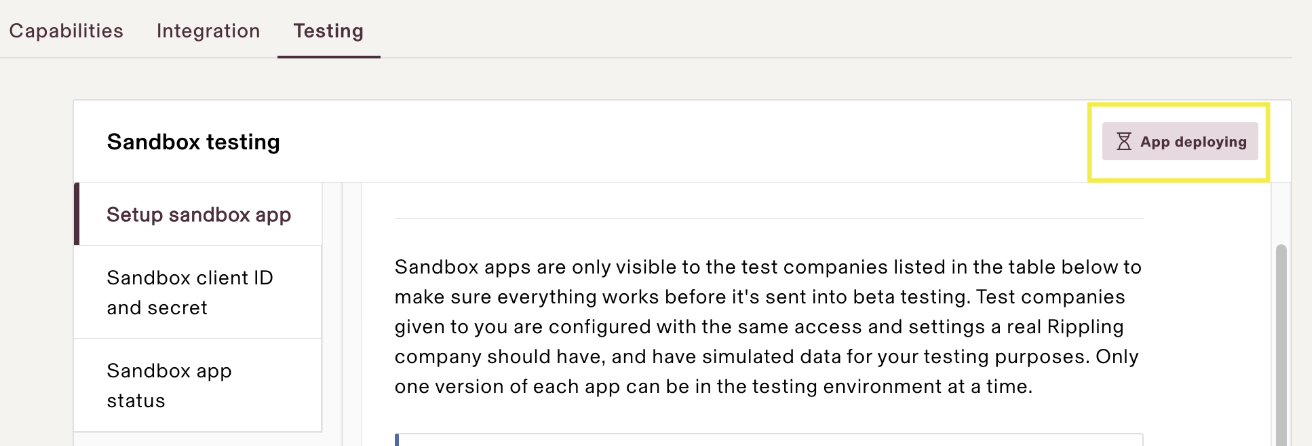
When you first deploy your sandbox app, you will see an App deploying icon that displays letting you know that this is in progress. You will also receive an email from no-reply@rippling.com informing you of this.
When the sandbox app has finished deploying, you will see the icon change to App ready for installation. You also will receive an email from no-reply@rippling.com informing you that Rippling has finished deploying your sandbox app listing.
You cannot install your app in your test company until your sandbox app listing has finished deploying. To use the link included in the notification email, you'll want to ensure the last tab you have visited is the test company account.
Video tutorial
Deploying a sandbox listing version for published apps
If you have recently been onboarded and had your already-published app listing migrated, you can also deploy a sandbox version of your published app listing and utilize this for testing purposes.
Duplicate the app listing
To duplicate your app listing, navigate to your partner company and then the Managed Listings tab. From here, you'll select the > icon to the right of the published app listing. You'll then select the three dots to the right of the published version of this app listing and select Duplicate.
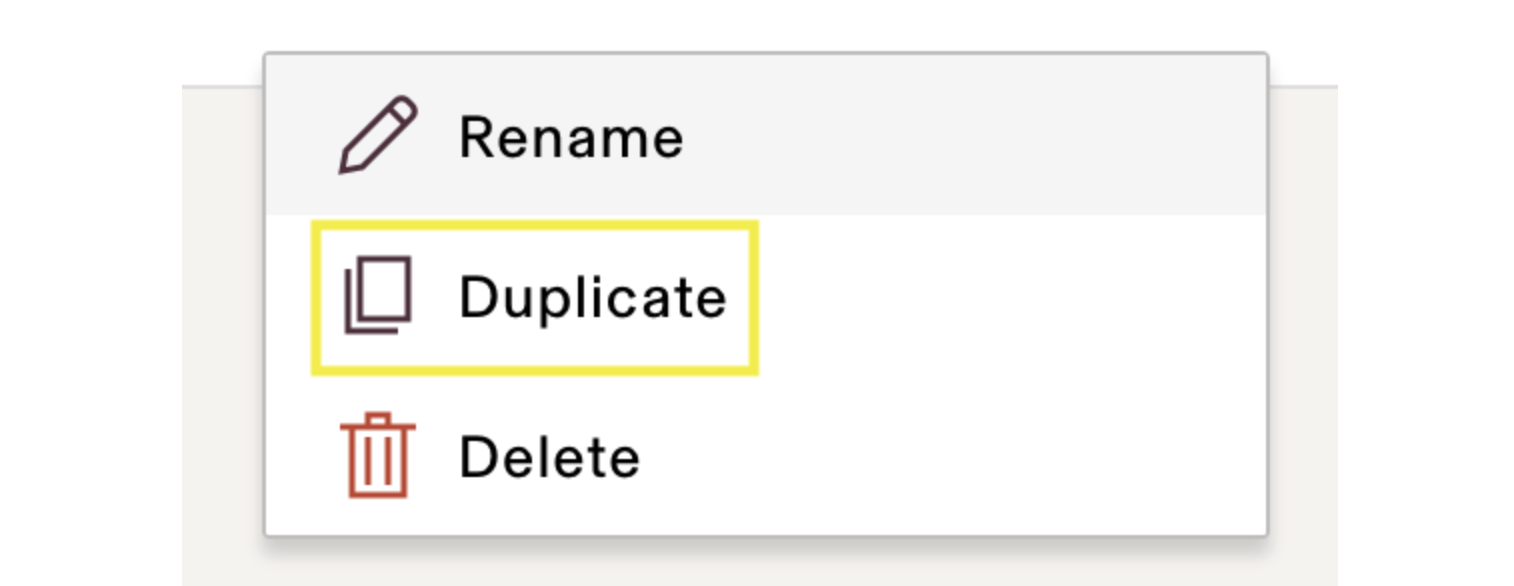
You can title this duplicated app listing anything you'd like, such as AppName V2.
Deploy the sandbox app listing
Navigate to the Testing > Setup sandbox app tab and choose whether you'd like to manually deploy any future edits or have these changes auto-deploy. From here, select Deploy sandbox app.
Video tutorial
Next steps
Now that you have deployed your app listing, you're ready to install.