

Overview
Beta testing is the phase in which shared customers will be able to install your app and test the integration using their Rippling companies.
This is an important part of the process as it allows you to identify and fix issues, gather user feedback, and ensure that the app operates smoothly under real-world conditions.
By conducting beta testing, you can improve the app listing's performance and user experience before the official launch.
Once an app listing has entered the beta testing phase, the only way to edit any details for the listing is to cancel the beta review and revert back to draft. Please know that this process does not affect any installs for existing customers, and for more information on this, please see this article.
Process
Submit app listing for Integration Review
Now that you've successfully installed your sandbox app, you'll need to complete the Integration Review form so the app listing can either be approved or rejected for beta testing.
This form can be found in the Managed Listings tab of your partner company, and will verify that your app listing completes certain requirements, including app installation flows, data syncing, etc.
For more information on requirements, please see here.
Approval or rejection for beta testing
If the app listing is rejected for beta testing, you can move the app back to the draft state to edit and make the appropriate changes listed in the feedback for the rejection. Once the changes have been made, you can re-deploy the sandbox app listing and submit for beta review again using the Integration Review form.
If the app listing is approved for beta testing, it will now be ready to test for outside companies. It's also recommended that you test installing the beta app within your test company Admin account.
Install production app
While any company with a link to the production URL can install and test this application, the Identity & Access Management package is still required to complete the installation.
The company admin installing the app listing must be designated as a Super Admin, Full Admin, or App Admin in order to complete the installation. If they are not, they will need the company's Super Admin to configure their Rippling permission profile with one of these capabilities.
For detailed instructions on how to do this, please see this Help Center article.
To access this URL link, you will want to navigate to your app listing's Testing > Beta testing tab. From here, select Set up production app and Next to acknowledge all requirements. After this has been completed, the production URL will be available on the Invite companies to beta testing tab.
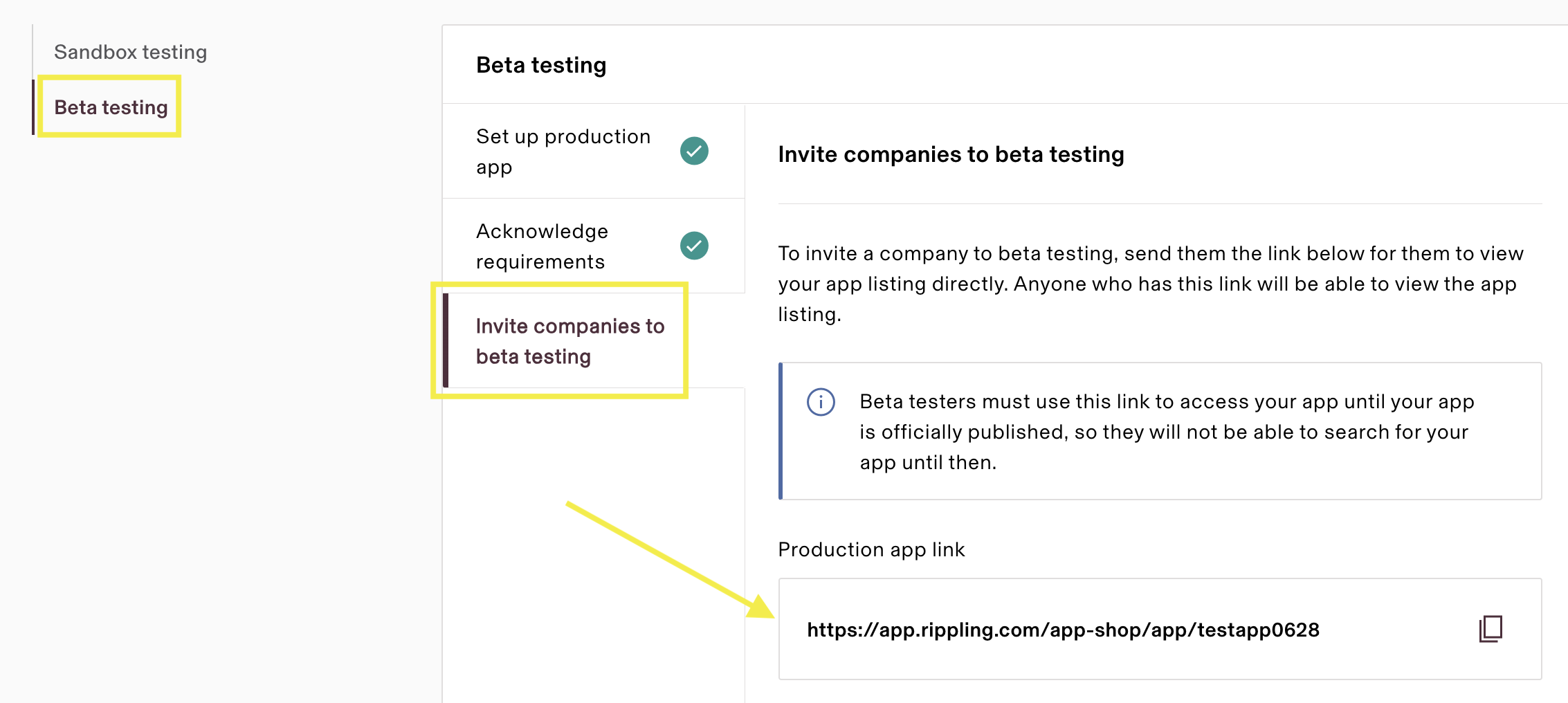
With this URL and the production credentials found on the Set up production app tab, you can test the install using the same Postman steps specified here. This URL can also be sent to outside companies to install for beta testing.
It is required that at least three companies (outside of the test company) install the app listing in order to be approved for Launch Review.
Submit Launch Review
Once the beta testing app listing has been successfully installed by at least three outside companies, you'll then complete and submit the Launch Review form.
Approval or rejection for publishing
Once the Launch Review form is submitted, Rippling will either reject or approve the app listing.
If the app listing is rejected for launch, it will be sent back to the beta testing or draft status. From there, you'll revert the app listing back to beta testing and make the necessary changes in order to re-submit your listing for Launch Review.
Next steps
Once the app listing is approved for launch, all that's left is to publish your app listing.