

As a partner Admin, you have access to a variety of settings that provide control and insight into your Rippling partner company.
The partner company settings page is organized into two main sections: Your Listings and Settings. Each of these sections contains multiple tabs. This article will detail the functionalities you can manage within each tab.
Your listings
Your Listings lets you manage everything about your app listings.

Home
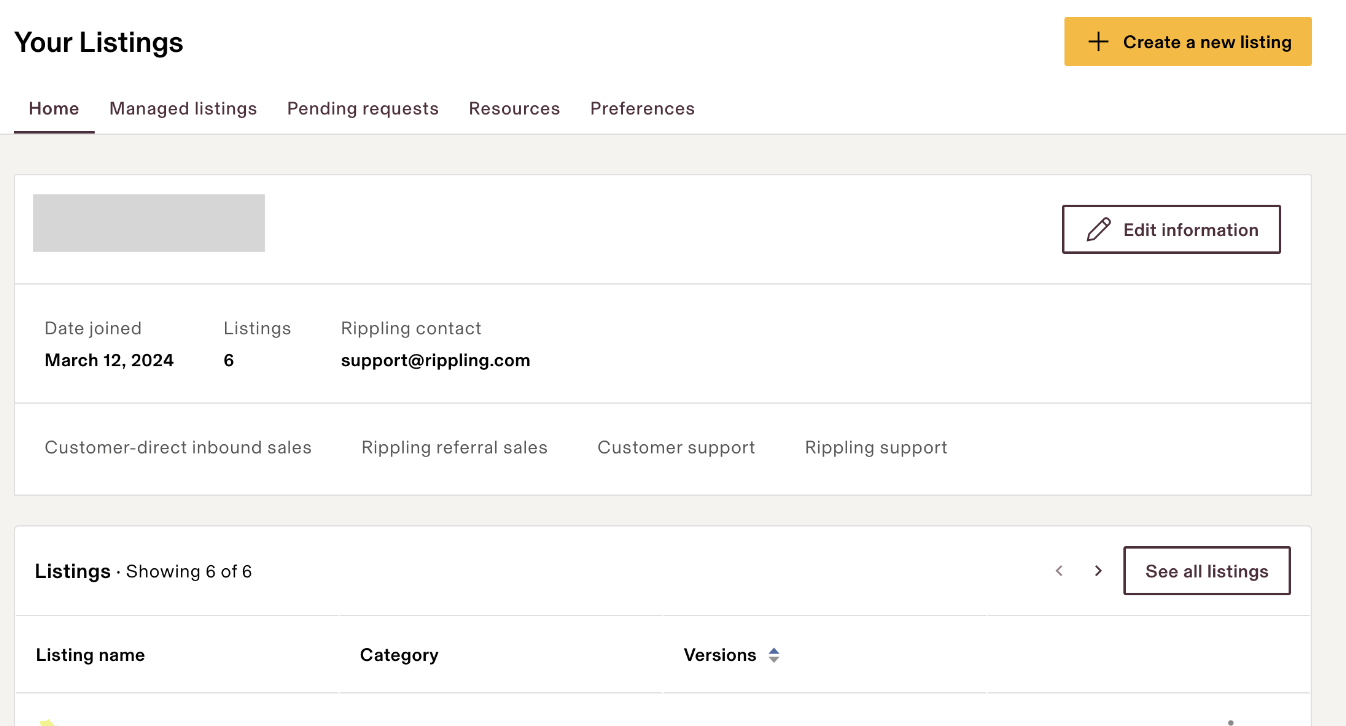
The Home tab provides you a snapshot of the information and app listings that you have configured in your partner company. It lets you manage everything about your app listings and your partner company.
Managed listings
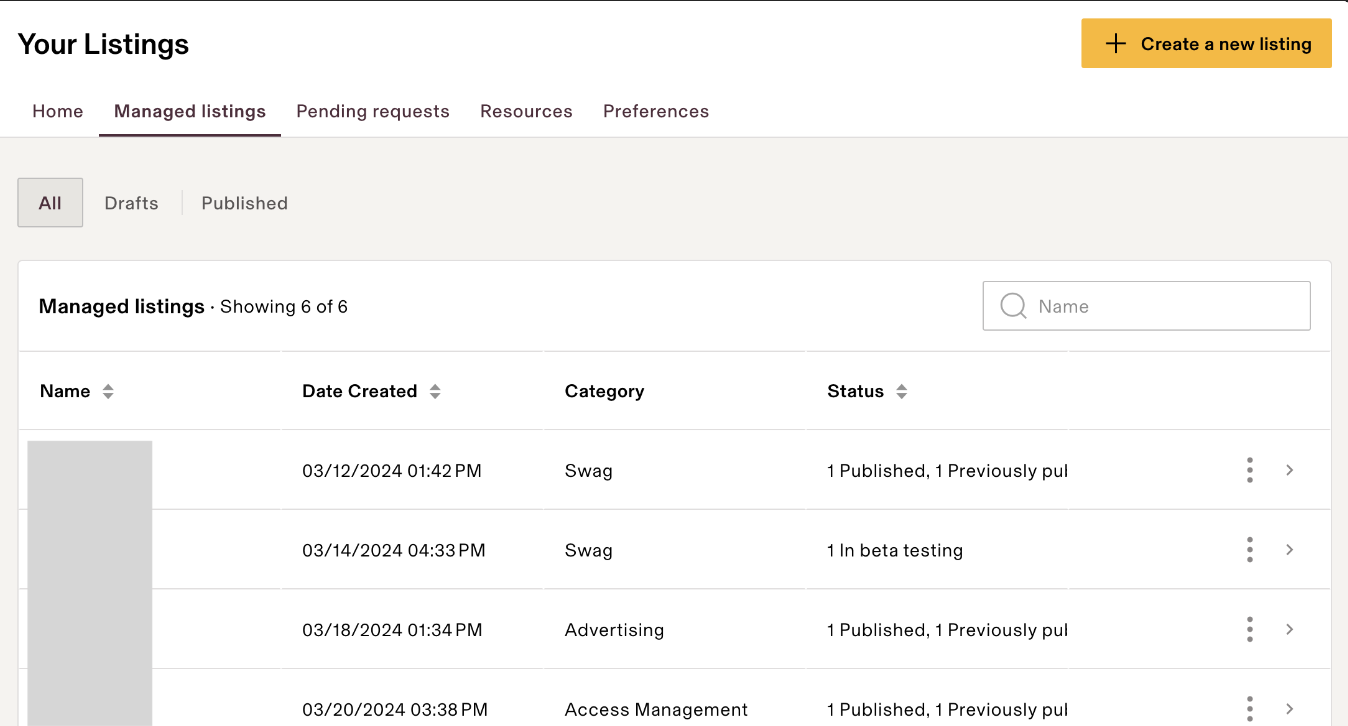
The Managed listings tab gives you the ability to manage all of your listings. You can search or filter your app listings to identify a specific listing, or app listings in a draft or published state. You can then click on the > icon to drill into the versions for a given app listing.
Pending requests
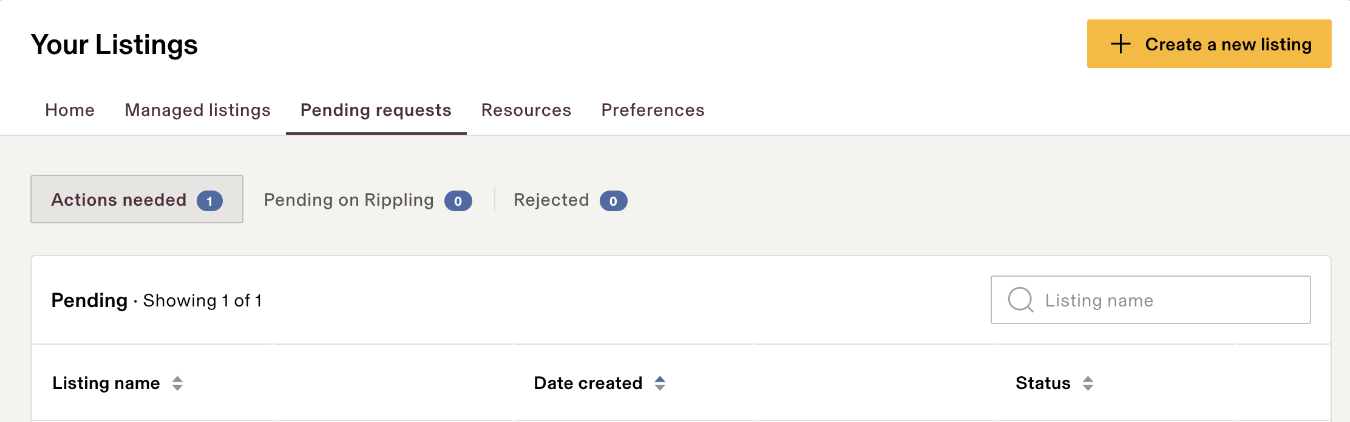
The Pending requests tab gives you the ability to quickly identify what actions are needed either by your team or by Rippling. App listings that appear in the Actions needed sub-tab signify that the next step is on your team. App listings that appear in the Pending on Rippling sub-tab signify that the next step is waiting on Rippling. App listings that appear in the Rejected sub-tab signify that Rippling rejected your app listing because it requires updates.
Resources
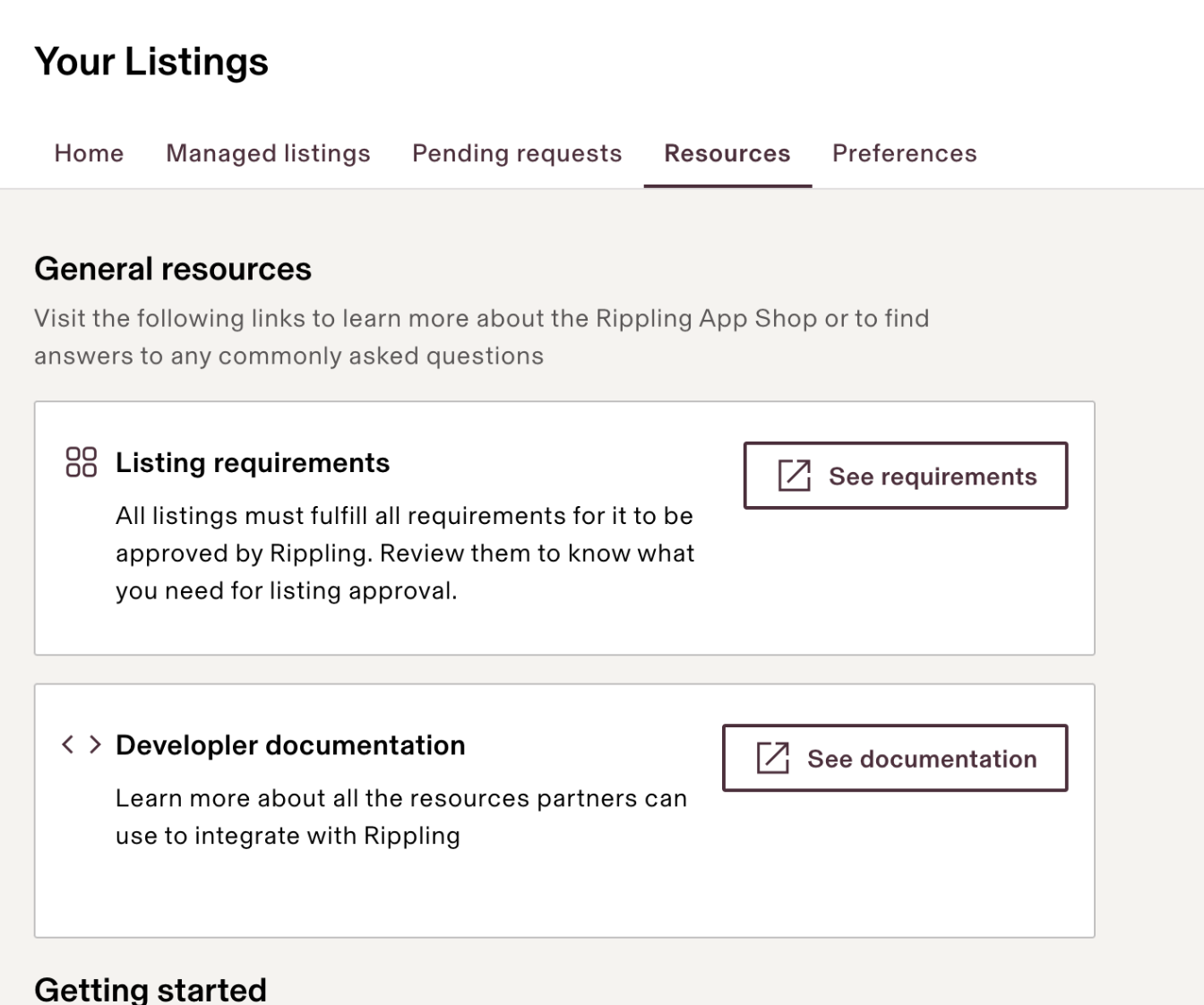
The Resources tab provides resources for listing requirements and help articles for the entire app listing process.
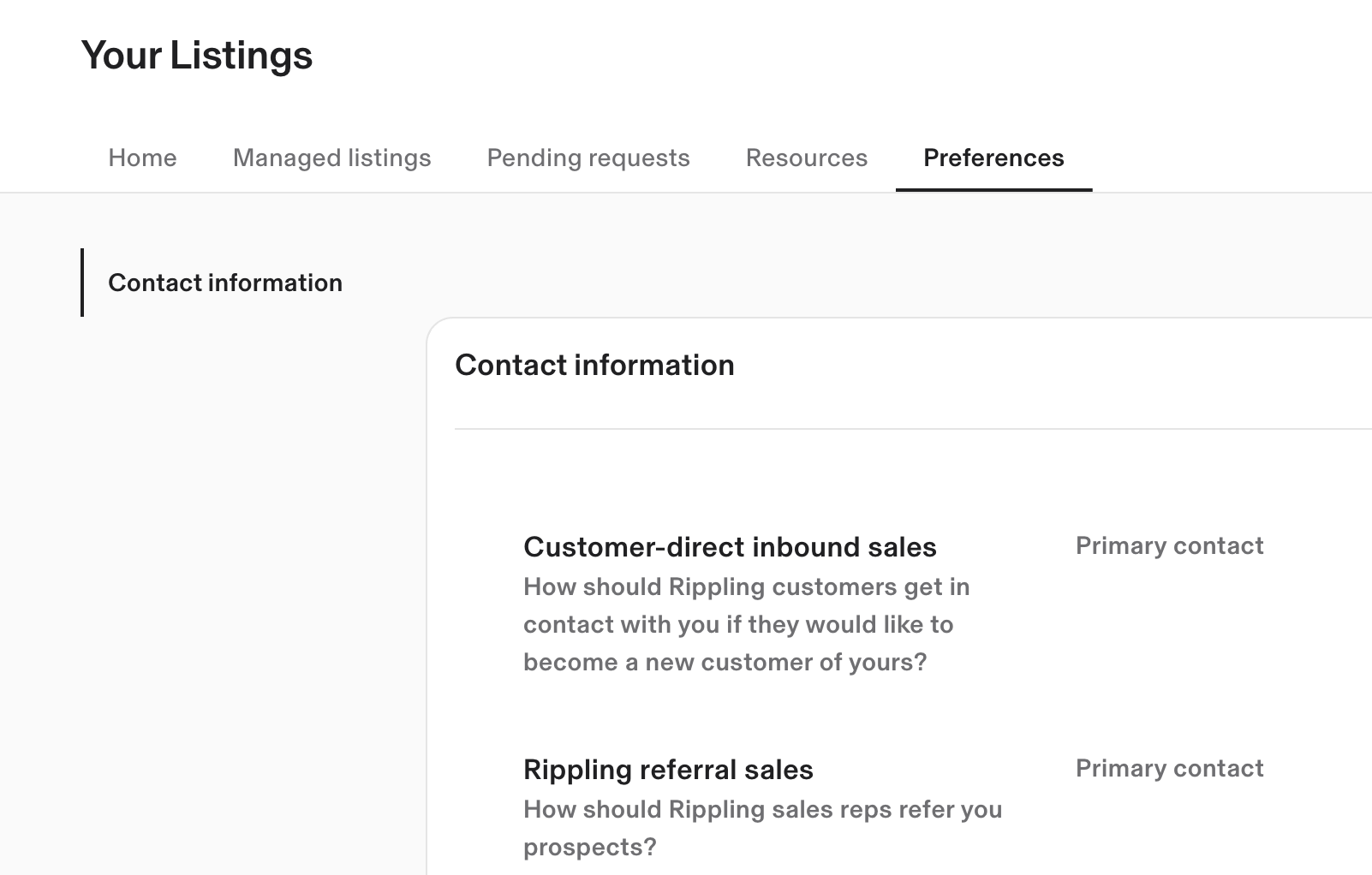
Preferences tab
The Preferences tab gives you the ability to manage the contact and billing information for your partner company. This information is typically configured as part of your initial onboarding to your partner company but can be edited and updated at any point.
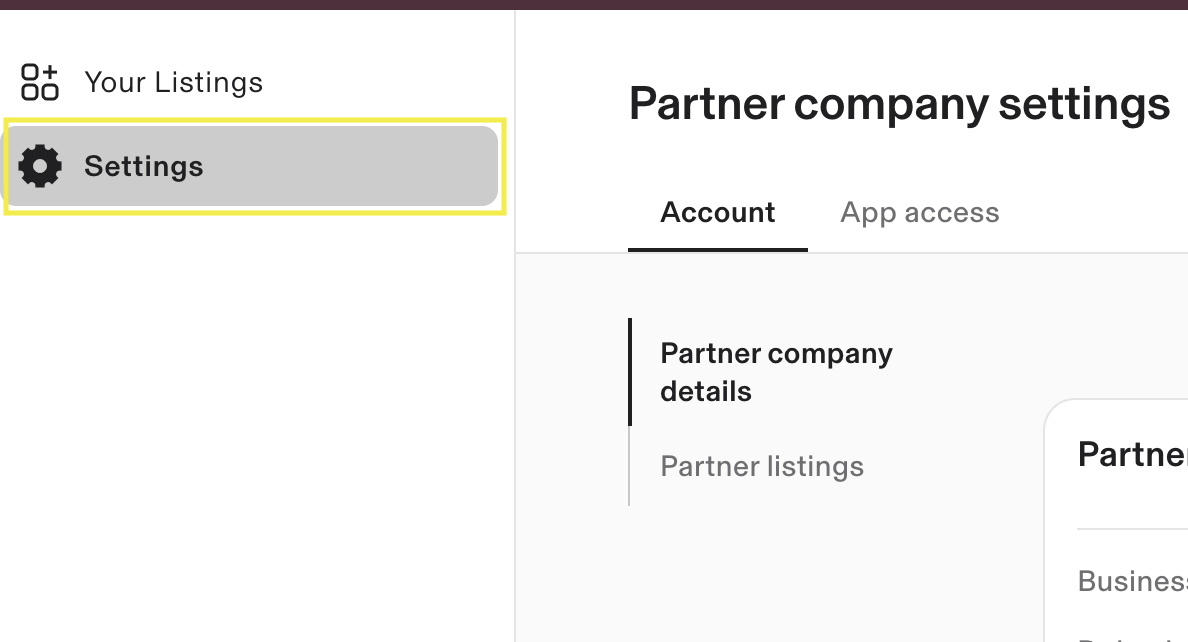
Settings
Settings lets you manage everything about your partner company.
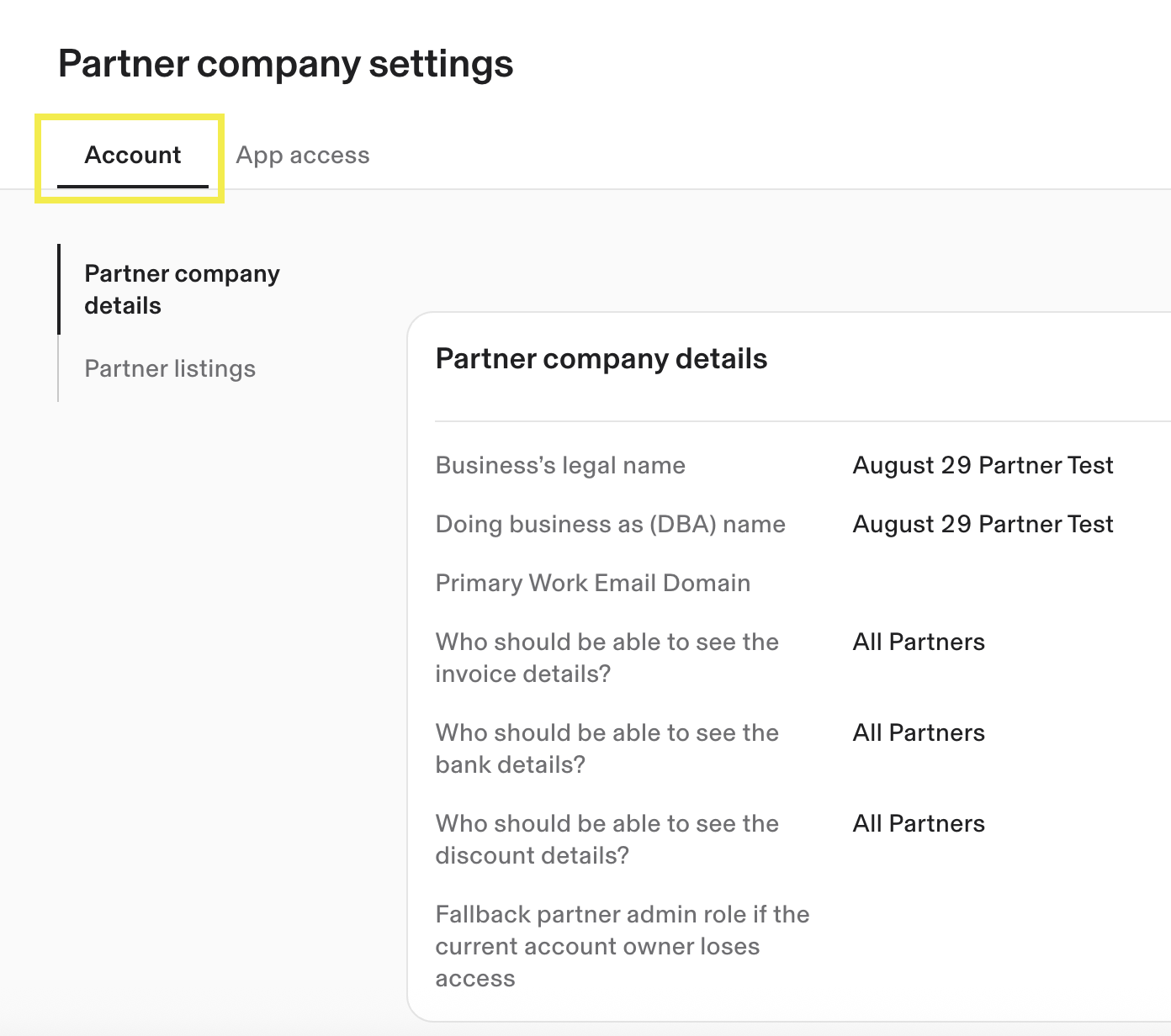
Account
The Account tab gives you the ability to manage the basic information about your partner company. You can update your partner company details or partner listings.
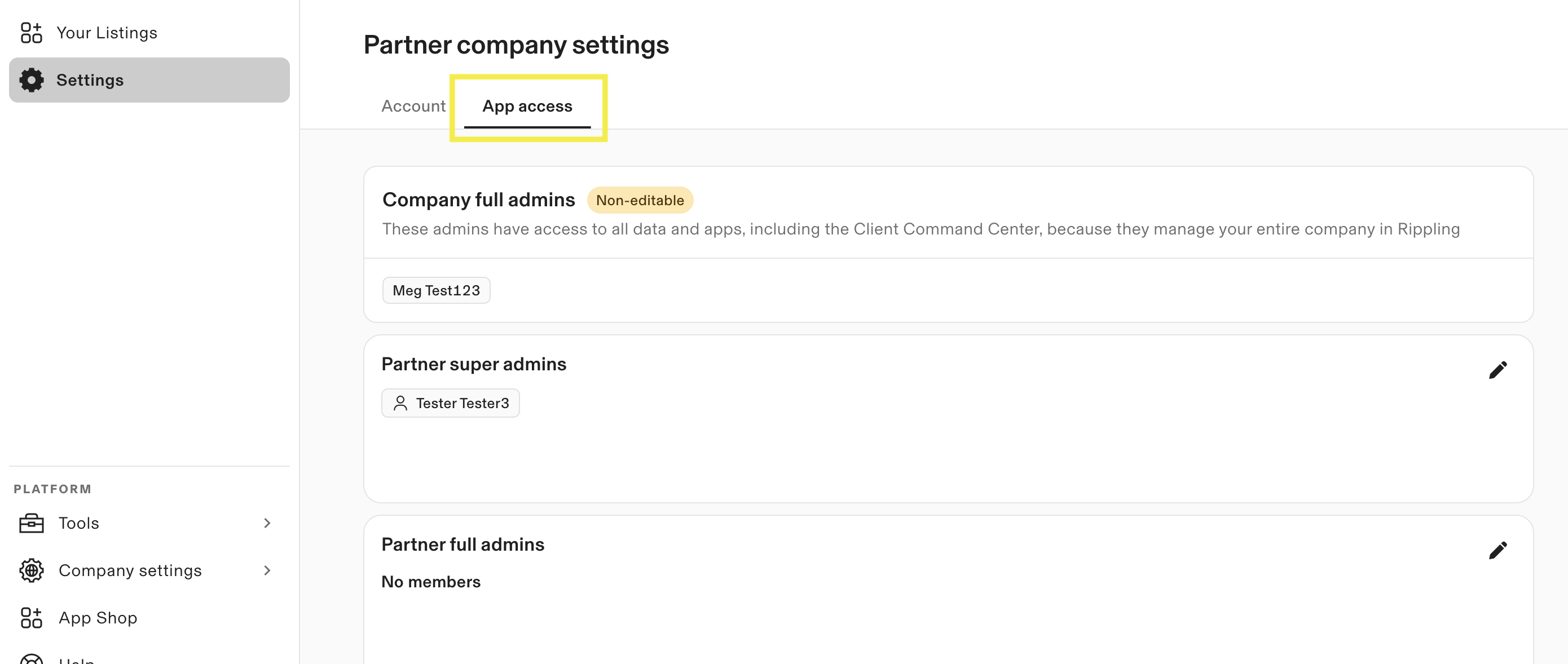
App access
The App access tab gives you the ability to manage all of your administrators for your company.
You can invite employees from your company as a partner Admin. In doing so, you can then have multiple members from your company managing your app listings and company information in Rippling. In many cases we see both business development and technical engineers added as partner Admins.
For details on how to manage team members in your partner company, see here.