Once your listing is live, you might find occasions where you need to alter certain details, such as updating the logo or refining the product description.
While published listings can't be directly edited, you have the option to duplicate your current listing. This action creates a replica of your app, but in the draft status. From there, you can freely make adjustments to this draft version and submit it for launch review. Once the updated app listing is approved, you can publish it, replacing the current live version with the new updates.
Duplicate the listing
To duplicate your app listing, navigate to your partner company and then the Managed Listings tab. From here, you'll select the > icon to the right of the app listing you'd like to make changes to. You'll then select the three dots to the right of the published version of this app listing and select Duplicate.
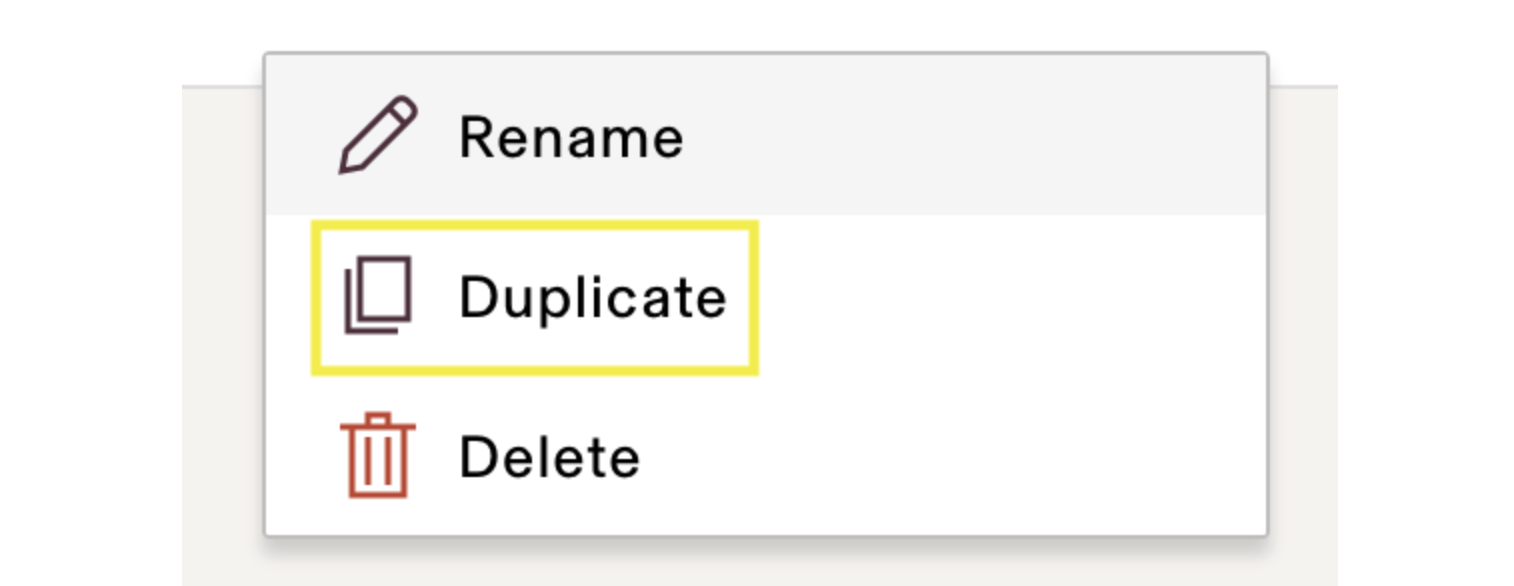
You can title this duplicated app listing anything you'd like, such as AppName V2.
Make changes
After the duplicated app listing's name is saved, the draft app listing will appear as an option within the Listing Versions. You'll then select the > icon to the right of this new listing version and make the necessary updates.
Submit for Integration Review
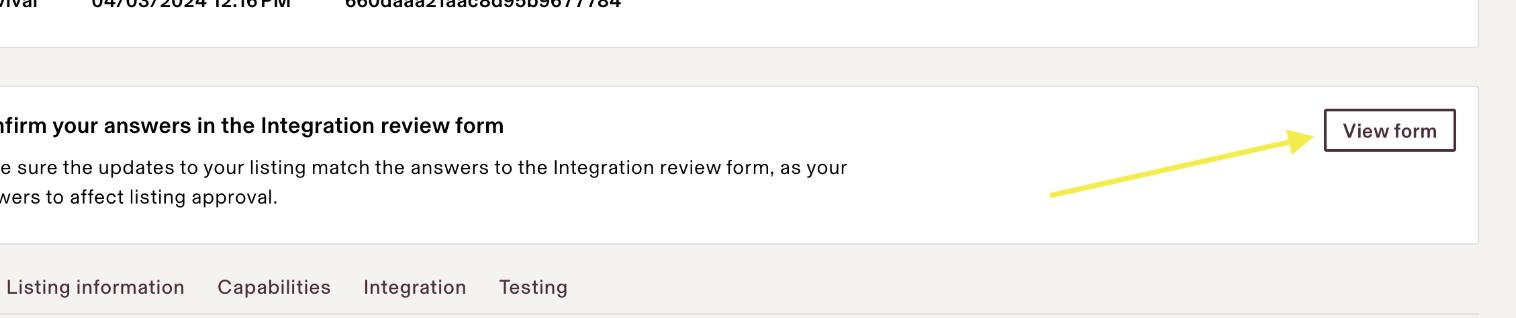
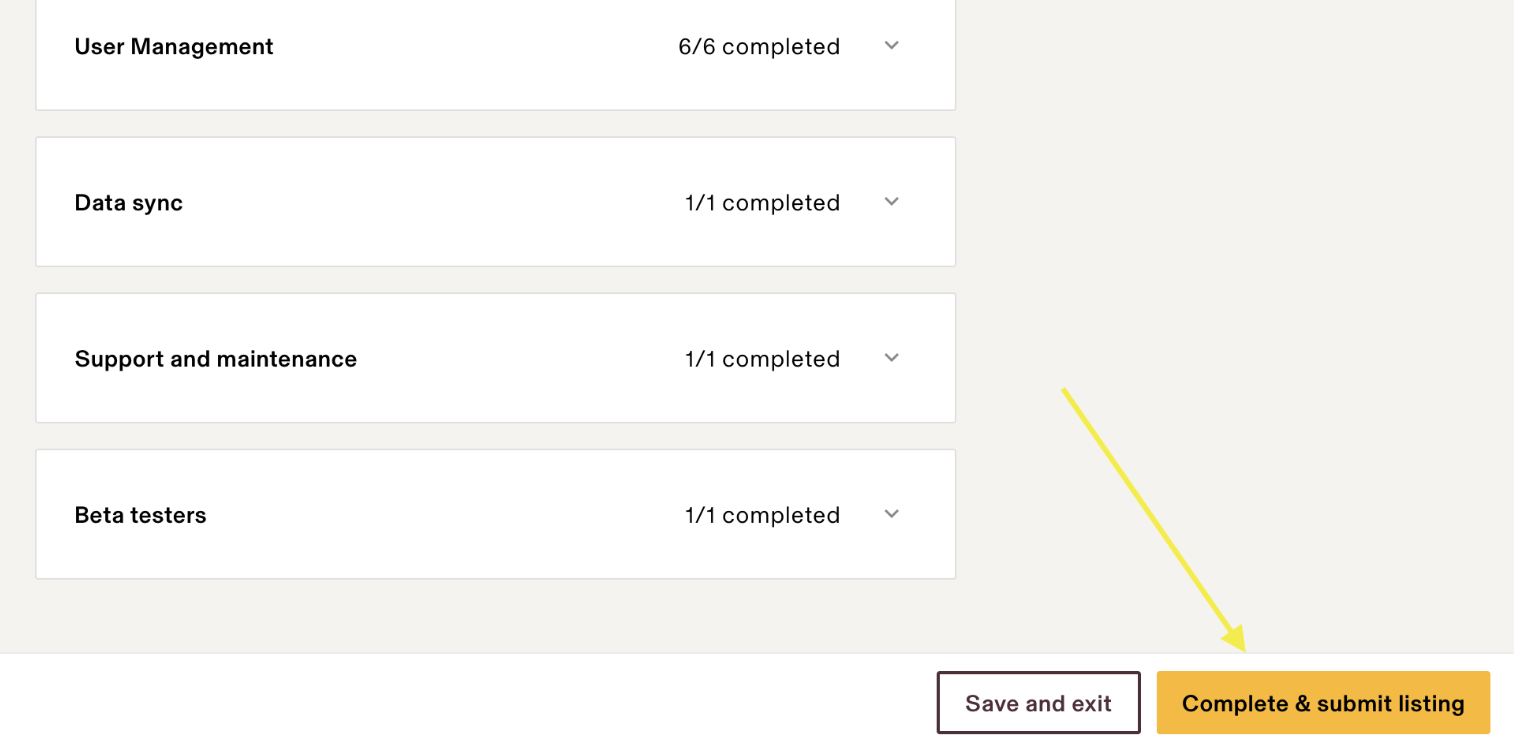
After all the changes have been saved, you'll select View form to ensure the Integration Review form is complete and accurate. After that has been verified, you'll select Complete & submit listing.
Listing is approved or rejected
If the app listing is rejected for publishing, you'll have the option to revert the listing back to the draft status and make any needed changes. It can then be re-submitted for review.
If the app listing is approved, you'll be able to publish the app listing.
Publish
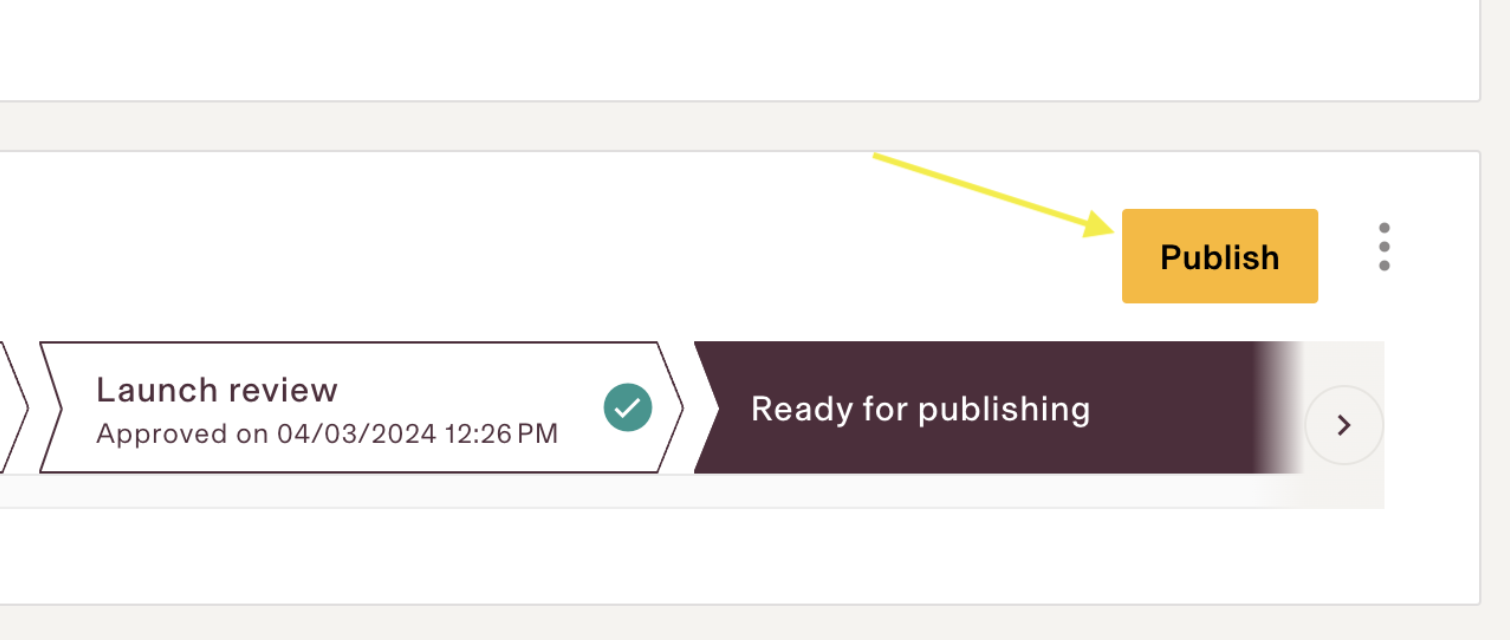
Once the app listing is approved, you'll then be able to publish the app listing by selecting Publish from your app listing's dashboard. This will replace the previous version of your app listing within the Rippling App Shop.